In today’s digital world, understanding the do’s and don’ts of computer use is crucial for personal, educational, and professional life. Computers have transformed how we work, learn, and interact with the world, making it critical to handle them wisely and responsibly. A computer—whether desktop, laptop, or tablet—is a powerful tool. When used correctly, it boosts productivity, supports creativity, and improves communication. Yet misuse or careless habits can lead to data loss, reduced performance, and even security risks.
This article offers a comprehensive, structured, and easy‑to‑follow roadmap of best practices (the “do’s”) and common pitfalls to avoid (the “don’ts”). We will guide you through hardware care, software habits, cybersecurity, etiquette, and productivity techniques so that your computing experience is both rewarding and safe.
What Is a Computer? A Brief Overview
A computer is an electronic device that processes data, runs programs, and performs tasks according to instructions from users or software. It includes various components like the processor (CPU), memory (RAM), storage (SSD/HDD), input devices (keyboard, mouse), and output devices (monitor, printer). Computers are used for everything from writing documents and browsing the internet to graphic design and coding. You can learn more about this on Wikipedia’s overview of computers and computing devices here.
Computers are versatile because they follow instructions precisely. They help solve problems faster than humans can manually, enabling complex calculations, creative multimedia production, and global communication.
Why Learning the do’s and don’ts of computer Use Matters
Poor computer habits can lead to frustration, inefficiency, hardware damage, security breaches, and loss of valuable data. On the other hand, adopting proven practices enhances performance, protects your information, and extends the lifespan of your device.
Whether you are a student, professional, freelancer, or casual user, knowing both the essential “dos” and the harmful “don’ts” ensures that you get the most out of your machine. This knowledge prevents common user errors and promotes safe digital habits that are increasingly important in a connected world.
Do’s: Best Practices for Using Computers
Maintain Your Hardware Regularly
- Keep Your Computer Clean
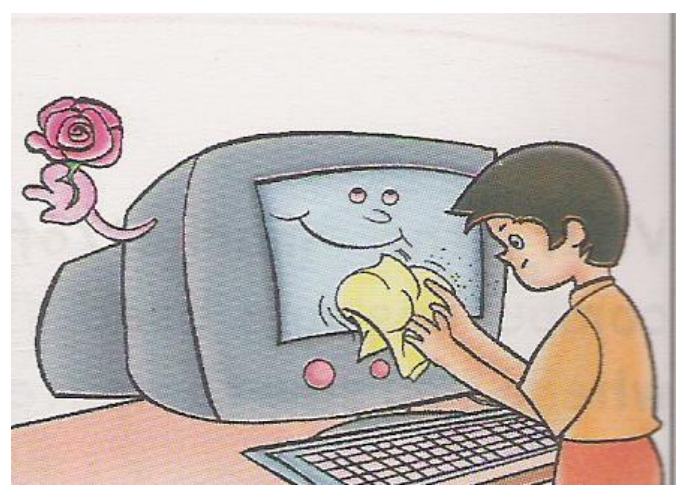
Dust, food crumbs, and spills can damage internal parts like the keyboard and motherboard. Wipe your screen with a soft cloth and use compressed air to clean vents. - Use a Cooling Pad or Proper Ventilation
Overheating shortens component life. Make sure vents aren’t blocked, and use a cooling pad for laptops during heavy use. - Handle Carefully
Moving a computer abruptly, knocking peripherals, or dropping a laptop can cause serious physical damage.
Protect Your System and Software
- Install Reliable Security Tools
Anti‑virus and anti‑malware tools help protect against threats. Regular scans keep your system healthy. - Enable Automatic Updates
Operating system and application updates often include security patches. Always install them promptly. - Use Backup Solutions
Data loss from hardware failure, theft, or mistakes is a real risk. Learn more about backup strategies and tools such as those highlighted in this article on the Best Free Backup and Recovery Software from Business To Mark to safeguard your files.
Organize Your Files and Folders
- Create a Logical Folder Structure
Save documents, photos, and media in appropriately labeled folders. This saves time and helps prevent accidental deletion. - Use Cloud Storage
Services like Google Drive, OneDrive, and Dropbox keep important files stored offsite, providing access from anywhere and extra protection against local drive failure.
Adopt Responsible Online Behavior
- Use Strong, Unique Passwords
Passwords should be long and include letters, numbers, and special characters. Avoid using the same password across multiple sites. - Enable Two‑Factor Authentication (2FA)
2FA adds an extra layer of security, requiring something you know (password) and something you have (phone or authentication app). - Be Cautious with Emails and Downloads
Phishing emails and unsafe downloads are common sources of malware. Never open attachments or links from unknown senders.
Efficient Typing and Productivity Habits
- Learn Keyboard Shortcuts
Keystrokes like Ctrl+C (copy) and Ctrl+V (paste) boost efficiency and minimize reliance on the mouse. - Stay Focused with Task Planning
Set goals for each session, break tasks into chunks, and avoid multitasking to improve output quality. - Use Productivity Software
Tools like calendars, to‑do lists, and time trackers help manage your schedule and reduce wasted time.
Don’ts: Mistakes and Bad Habits to Avoid
Don’t Ignore Security Practices
- Don’t Use Pirated Software
Pirated software often contains malware. Always use licensed or open‑source alternatives. - Don’t Save Passwords in Unsecured Places
Storing passwords in plain text or unsecured notes makes them easy to steal. - Don’t Click Suspicious Links
Even if a link looks real, hover over it first and verify the URL before clicking.
Don’t Neglect Hardware Care
- Don’t Block Airflow Vents
Placing your laptop on a soft surface like a bed blocks vents, causing overheating. - Don’t Pull Cables Roughly
Tugging on cords can damage ports. Always unplug gently by holding the plug. - Don’t Eat or Drink Near Your Computer
Spills can ruin keyboards and internal circuits.
Don’t Forget to Back Up Your Data
Failing to back up means you risk losing hours of work, precious photos, and essential documents. Backups should be part of your routine. Consider an external drive plus cloud solution for the strongest protection.
Don’t Overload Your System
- Avoid Running Too Many Programs Simultaneously
Excessive apps can slow performance. Close programs you aren’t using. - Don’t Fill the Hard Drive Completely
Leave at least 10–20% free space to allow the system to manage files efficiently.
Don’t Ignore Software Updates
Ignoring updates leaves your system exposed to known vulnerabilities and missed improvements. Always install apps and system updates when prompted.
Using Input Devices Responsibly
Input tools like keyboards, mice, and external drives should be used with care and awareness:
- Avoid plugging in unknown USB devices since they can carry infections and hardware threats. Articles like The Hidden Dangers of USB Devices in the Modern Workspace Environment explain real risks associated with careless USB use.
- Do not yank out cables while data is being written, as this can corrupt files.
Keeping Digital Etiquette and Responsibility
Digital etiquette refers to respectful, safe, and lawful behavior online and in shared digital environments:
- Respect privacy by not accessing others’ files or accounts without permission.
- Communicate politely in messages, emails, and collaborative tools.
- Cite sources when using others’ work to avoid plagiarism.
Improving Computer Skills Over Time
Becoming good with computers doesn’t happen overnight. Practice consistently:
- Take online tutorials on operating systems and tools.
- Experiment with non‑critical projects to build confidence.
- Seek help from forums and communities for real‑world problem solving.
Frequently Asked Questions about Computer Use
How Often Should I Update My Computer?
Regularly check for and install updates weekly to stay protected and enjoy new features.
What’s the Best Way to Protect My Personal Data?
Use strong passwords, 2FA, encryption for sensitive files, and reliable backups.
Can a Computer Be Secured Without Paid Tools?
Yes, many free tools like built‑in firewalls, free antivirus software, and cloud backups offer solid protection.
Conclusion
Understanding the do’s and don’ts of computer use empowers you to maximize your device’s potential while safeguarding your data and privacy. By following proven practices such as maintaining hardware, protecting software with security tools, organizing files, and avoiding risky habits, you build a productive and worry‑free digital environment. Understand hardware risks
Keeping good habits helps your computer last longer, performs better, and keeps your digital life more secure. Although computers are powerful, they require wise use to bring out their full benefits. Use this guide as a roadmap to better computing and return to it whenever you need a refresher on healthy digital practices. Read more about safe backup strategies