






When teams need training clips, client walkthroughs, software demos, or clear internal updates, a no watermark screen recorder for professional use free can be a smart starting point. The real value is not just saving money. It is about creating clean, usable recordings that look polished, feel trustworthy, and fit into daily work without extra friction. In this guide, we will look at the practical side of choosing a free screen capture tool, building a repeatable workflow, and getting results that feel professional from the very first recording.
Why polished screen recordings matter in business
Screen recordings are more than simple videos of a computer display. In modern business use, they help teams explain tasks, train new employees, document processes, answer support questions, and demonstrate products without long meetings. A good recording can reduce confusion, save time, and make information easier to follow. That is one reason screen recording software has become a useful part of everyday communication in business settings. It supports tutorials, narrated walkthroughs, support replies, and reusable training materials in a way that still images alone cannot match.
Professional quality matters because viewers make instant judgments. If the recording looks cluttered, the sound is uneven, or the cursor jumps around too quickly, the message loses clarity. On the other hand, a calm pace, clean frame, and understandable narration create confidence. Even when the software is free, the final result can still feel premium if the process is thoughtful. That is why people often compare a professional screen recorder not just by price, but by output quality, audio controls, editing support, and export options.
What to look for before you begin
The first mistake many people make is assuming every recorder works the same way. In practice, the best choice depends on how you plan to use it. Some tools are better for fast notes and quick sharing. Others are better for lessons, product demos, or longer presentations. A useful screen recording software setup usually starts with a simple question: do you need speed, detail, or both?
A clean recording should let you choose whether to capture the full screen, a single window, or a smaller region. That flexibility matters because a viewer should see only what is important. If the goal is to explain one app, a specific window may be enough. If the goal is to show a full workflow across several programs, a wider capture area makes more sense. The most useful tools also let you control microphone input separately from system sound, which is important when you want your narration to stay clear while music, alerts, or background noise stay out of the way.
Another useful feature is smooth export. A tool may look simple while recording, but still produce a video that is sharp, easy to share, and ready for upload. That is especially important for remote teams, where recordings often become part of training libraries, support replies, or product education. In that kind of setting, a free screen capture tool should not feel like a compromise; it should feel like a dependable part of the workflow.
Start with the purpose of the recording
Before clicking record, define the purpose of the video as clearly as possible. A tutorial is not the same as a sales demo. A support reply is not the same as a company training clip. Once the purpose is clear, it becomes much easier to choose the right layout, speaking style, and editing level.
For training content, the goal is usually completeness and clarity. The viewer may need to learn a process step by step, so every click, pause, and menu choice should be easy to follow. For client-facing demos, the focus shifts toward confidence and flow. You want the product to look stable and organized, and you want the narration to sound calm and intentional. For internal support videos, speed matters more than polish, but the recording still needs to be accurate and easy to understand.
This is also where the idea of “professional” becomes practical. A professional screen recorder is not necessarily the tool with the most features. It is the tool that helps you produce the right result with the least friction. Sometimes that means a simple built-in recorder. Sometimes it means a more advanced open-source option. The best choice is the one that fits the job without adding extra steps.
Prepare the screen before you record
The quality of the final video often depends on what happens before recording starts. A clean desktop, a quiet environment, and a predictable workflow do more for professionalism than many people realize. Close unnecessary windows. Hide notifications. Clear browser tabs that are not needed. If possible, arrange the content in the order you plan to show it. Every extra distraction becomes a visual interruption for the viewer.
Audio preparation matters just as much. Test the microphone before recording and listen for echo, room noise, or volume imbalance. A good voice track makes a simple recording feel more polished than a fancy visual track with poor sound. If your software allows it, try recording system audio and microphone audio on separate tracks or at least with separate controls. That gives you more flexibility later.
Resolution is another useful detail. Use a setting that matches the content you are showing. If the content is small or text-heavy, too low a resolution can make details hard to read. If the system is slow, recording at a lower resolution or lower frame rate may produce a smoother result. The aim is not the highest technical number. The aim is the cleanest video that your hardware can handle comfortably.
Capture the right area for the message
One of the biggest advantages of screen recording software is the ability to choose what the audience sees. Full-screen capture can be useful when you want to show a multi-step process that moves between apps. A window-only recording is better when the viewer should focus on one program and nothing else. A custom region is useful when you want to keep the attention on a smaller area, such as a form, a chart, or a dialog box.
The selection you choose affects how the audience experiences the video. If the capture area is too large, the viewer may need to search for the important detail. If it is too small, the content may feel cramped. Good framing saves time for the viewer and makes your narration easier to follow. It also reduces the need for heavy editing later.
This is one reason people compare recording tools so carefully. The most practical options are often those that let you switch easily between capture modes. For a broader comparison of feature sets, the BusinessToMark guide on Best Screen Recording Software 2026: Top Tools for Business Professionals is a useful companion read. If your workflow also involves still images, A Deep Dive into Easy Screenshot Software for Windows 10 and 11 can help you think about capture habits more broadly. For mobile workflows, Mastering Screen Recording on iPhone: The Complete Guide to Using QuickTime Player for Professional Results is a natural next step. These articles sit within BusinessToMark’s business category, which also features screen recording and screenshot-related content on its listing pages.
Keep the narration simple and natural
A great recording usually sounds like a helpful conversation rather than a performance. Speak clearly, but do not rush. Pause briefly after important actions so the viewer can process what just happened. If you move through a menu or setting too quickly, the audience may miss the step that matters most. When the goal is teaching, silence can be as useful as speech because it gives people room to observe.
Try to narrate the reason behind each action instead of only describing the action itself. For example, instead of just saying that you opened a menu, explain why that menu matters. This small shift makes the recording more helpful and reduces the number of times a viewer needs to replay a section. It also gives your video a more human tone.
If you plan to create more than one recording, develop a consistent voice style. Use the same opening, the same pace, and the same closing structure whenever possible. That consistency helps viewers know what to expect and makes the recordings easier to reuse in training libraries or internal knowledge bases. Even a simple free screen capture tool can produce strong results when the narration is steady and purposeful.
Good audio makes a bigger difference than most people expect
Visuals attract attention, but audio carries the meaning. A recording with steady sound, low noise, and balanced volume will usually feel more professional than a highly edited video with distracting audio problems. That is why microphone setup deserves real attention.
Use the best microphone available to you, even if it is a basic one with careful placement. Keep it close enough for clear speech, but not so close that breathing or popping sounds become distracting. If your software includes noise reduction or mic leveling, test it before your actual recording. A few minutes of practice can save a lot of cleanup later.
When possible, record in a quiet room and reduce background interruptions. Fans, moving chairs, open windows, and nearby conversations can all make a recording feel less polished. If system audio is needed, keep it at a level that supports the voice instead of overpowering it. A professional screen recorder should help you control that balance easily, but even when it does not, a little manual adjustment can make a big difference.
Edit with restraint
Editing is useful, but over-editing can make a recording feel unnatural. The best edits are usually the ones that help the viewer stay focused without becoming aware of the editing itself. Trim out dead space at the beginning and end. Remove obvious pauses, mistakes, or unnecessary loading time. Keep the structure clean and direct.
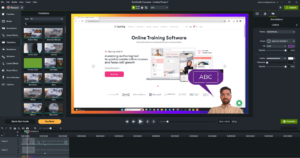
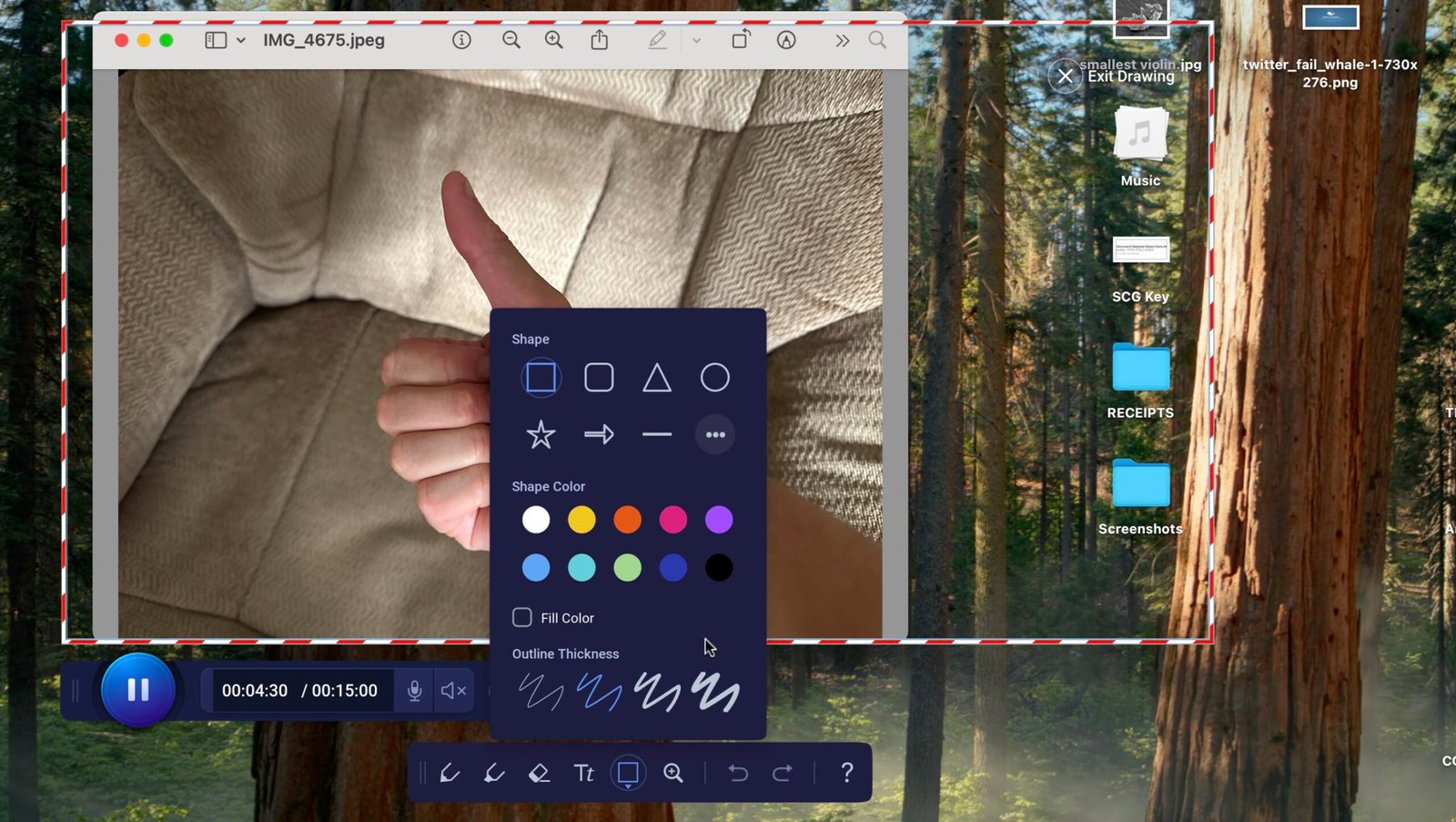
Zooms and callouts can be helpful when you need to draw attention to a button, menu, or field. Use them carefully. Too many visual effects can make the screen feel busy and reduce trust. A clean cursor highlight or a short zoom effect is usually enough. Simple titles and concise labels often work better than flashy transitions.
If your recorder includes built-in editing, use it to save time, but do not feel pressured to use every feature. The goal is clarity, not decoration. Many viewers prefer a straightforward recording that is easy to follow over a heavily styled one that distracts from the actual message. That principle is especially important when the recording is meant for business use, training, or support.
Free tools can still create premium-looking output
There is a common assumption that free software must look basic. In screen recording, that is not always true. Many free and open-source tools are very capable, especially when they are used carefully. Some built-in system tools are enough for quick recordings. Some open-source applications offer detailed control. Some cloud-based tools make sharing easy. The main difference is often workflow, not quality.
BusinessToMark’s screen recording article groups the landscape into built-in options, free and open-source tools, paid professional suites, and cloud-based services. That breakdown is useful because it reflects real-world needs rather than just price tags. Simple built-in tools can be enough for short internal captures. Free open-source tools can offer powerful control for users who are comfortable learning them. Paid suites may add editing and team features, while browser-based platforms often prioritize speed and sharing.
This is where the middle of the process matters most. That is where a no watermark screen recorder for professional use free becomes especially helpful, because it lets you focus on the actual teaching or presentation rather than on branding that does not belong in the final output. If your workflow is organized, the recording can look polished even when the software itself is free. The tool does not have to do everything. It only has to help you do the right things in the right order.
Useful habits for cleaner recordings
A few simple habits can improve nearly every recording. First, rehearse the steps before you start. You do not need a full script, but you should know the path you plan to take. Second, keep the mouse movement deliberate. Fast or erratic cursor motion can make the viewer lose track of what matters. Third, avoid talking while a page is loading or while a system is busy unless the delay itself is part of the lesson.
It also helps to reduce unnecessary movement in the background. If notifications appear on screen, they can pull attention away from the main point. If your desktop is cluttered, the viewer may focus on the wrong details. If windows overlap, the message becomes harder to follow. A clean recording environment creates a more comfortable viewing experience and makes the content easier to reuse later.
Another useful habit is to think about repetition. If a task appears in several recordings, create a standard method for showing it. Over time, that consistency saves effort and gives your content a familiar style. People often think quality comes only from software, but in practice it comes from repeatable habits.
The role of export settings
Export settings often decide whether a recording feels crisp or fuzzy after it leaves the editor. Even a well-made video can look weak if it is compressed too heavily or exported in a poor format. Choose settings that preserve readability, especially if the recording includes text, menus, or small interface elements.
For most business use, a stable, widely supported format is usually the safest path. Keep the resolution close to the original capture when possible, and avoid compressing so aggressively that text becomes hard to read. If the file is meant to be shared by email or chat, a smaller size may be useful, but never at the cost of legibility. If the recording is meant for training or marketing, quality should usually take priority over file size.
It can also help to store a master copy before creating a smaller version for sharing. That way, you preserve the best version for future edits, and you can always make a lighter copy later if needed. This habit is especially helpful when recordings are part of a library that may be reused months later.
Screen recordings for support and training
Support teams often benefit from recording short solutions to common problems. Instead of writing long explanations, they can show the exact steps on screen. This makes the message easier to understand and reduces back-and-forth communication. Training teams also gain a lot from recordings because employees can revisit the same lesson without needing another live session.
These uses are part of why screen recording has become such a useful business tool. The BusinessToMark guide notes that recordings are used for demonstrations, onboarding, customer support, documentation, and marketing workflows, which shows how wide the practical value can be.
Support and training content also benefits from consistency. If every recording follows the same structure, viewers can focus on the content instead of adjusting to a new style every time. A short opening, a clear explanation, a steady pace, and a simple closing are often enough to make the video useful. That is another place where a free screen capture tool can shine. Simplicity is often more helpful than complexity.
A good recording workflow is repeatable
The easiest way to improve output is to build a workflow you can repeat. Start with preparation. Clear the screen, check audio, and decide what will be shown. Move into recording with a simple plan. Stay calm, keep the cursor movement intentional, and speak at a pace that fits the content. Then edit lightly, export carefully, and store the final file in a clear location.
Once this routine becomes familiar, each new recording gets easier. You will spend less time wondering where to click, what to say, or how to clean up mistakes. The process becomes automatic enough that the quality improves without extra effort. That is where professional results begin to appear consistently.
For teams, this repeatability matters even more. A documented workflow means different people can produce similar recordings without guessing. That makes training simpler, support faster, and content libraries more coherent. It also reduces the risk of producing videos that feel inconsistent or off-brand.
How to make free recordings look trustworthy
Trust is a quiet part of video quality, but it matters. Viewers usually trust recordings that feel calm, organized, and accurate. They trust the content more when the audio is clear, the visuals are uncluttered, and the actions are easy to follow. Trust grows when the recording respects the viewer’s time.
One way to build trust is to avoid unnecessary style changes. Do not switch fonts, overlays, or color effects without a good reason. Keep the layout simple. Let the content itself carry the message. Another way is to make sure the narration matches what appears on screen. If the voice says one thing and the screen shows another, viewers lose confidence quickly. Accuracy is more important than flair.
This is also where the idea of a professional screen recorder becomes practical again. The best tool is the one that supports clear communication. If the software is free, that is helpful. If it also avoids watermarks and distracting branding, even better. But the real goal is the same: deliver a recording that looks intentional and useful.
A quick note on learning from related tools
Sometimes it helps to study tools that are already known for screen capture. For background reading on a capture-focused product, Bandicam on Wikipedia offers a useful reference point because it is described as screen capture and screen recording software. That kind of reference is helpful when you want to compare ideas, vocabulary, and common features across the category.
Looking at other tools can sharpen your own workflow. You may notice how some tools prioritize fast capture, while others focus on editing, annotation, sharing, or system performance. The point is not to copy every feature. The point is to notice what actually matters for your own recording habits. That habit of comparison often leads to better decisions, especially when choosing between built-in options, open-source apps, and more advanced paid suites.
Common mistakes that weaken a recording
Many recordings lose quality for simple reasons. The first is rushing. Fast speech and fast clicks make it harder for the viewer to follow. The second is recording too much. If the recording includes long dead spaces, unnecessary tabs, or unrelated actions, the main message becomes harder to see. The third is ignoring sound. Even a visually strong recording can feel unfinished when the audio is unclear.
Another common mistake is over-complicating the layout. Some people add too many elements on screen and end up distracting from the tutorial itself. Others try to fix every issue through editing when the real problem was poor preparation. It is usually easier to make one clean recording than to repair a confusing one afterward.
A final mistake is failing to test the result before sharing. Always listen and watch a short sample if possible. Check whether the audio is balanced, the text is readable, and the flow makes sense. A five-minute review can prevent a lot of confusion later.
A practical checklist for the next recording
Before you begin, make sure the desktop is clean and the needed windows are ready. Check the microphone and system sound. Decide whether you will capture the full screen, one window, or a smaller region. Rehearse the first few actions so you do not hesitate at the start. During recording, move at a steady pace and explain only what matters. After recording, trim the rough edges, export in a clear format, and save the final file where the team can find it easily.
That routine is simple, but it is effective. It works for tutorials, onboarding clips, product walkthroughs, support replies, and internal explanations. It also scales well because you can repeat the same method over and over without starting from scratch. When the workflow is stable, the software becomes easier to judge on the basis that matters most: whether it helps you communicate clearly.
Final thoughts
A strong recording is not defined by price alone. It is defined by clarity, control, and usefulness. A free tool can still deliver excellent results when the setup is clean and the workflow is disciplined. Good audio, careful framing, steady narration, and light editing often matter more than flashy extras. That is why many teams can start small and still produce content that looks professional.
The best results usually come from treating recording as a process, not a button. Prepare the screen. Check the sound. Choose the right capture area. Speak with purpose. Edit with restraint. Export carefully. Do those things consistently, and your videos will feel smoother, clearer, and more trustworthy.
For readers who want to continue exploring related topics, BusinessToMark’s business category already includes helpful coverage of screen recording, screenshots, and related productivity tools. The category page and its linked posts make it easy to branch into adjacent workflows when needed.