In today’s digital era, creating high-quality video content has become essential for professionals, educators, and content creators. Whether you want to make tutorials, presentations, or demos, knowing how to record full screen or specific window with voiceover can elevate your content’s clarity and engagement. This guide provides step-by-step instructions, tools, and tips to record your screen effectively while capturing high-quality audio narration.
Easy Screenshot Software for Windows
Why Screen Recording With Voiceover Matters
Screen recording with voiceover allows users to convey information more effectively. Instead of relying solely on visual cues, adding narration improves comprehension and keeps viewers engaged. Whether for business presentations, online tutorials, or training materials, integrating voiceover makes your content professional and accessible.
Some benefits include:
- Enhancing tutorial quality for educational content.
- Creating professional business demos and presentations.
- Making software training easier for employees or clients.
If you want a detailed look at top software for business professionals, check out this internal resource: Best Screen Recording Software 2026.
Essential Tools for Screen Recording
Choosing the right software is crucial. Some popular options for recording full screen or a specific window include:
OBS Studio
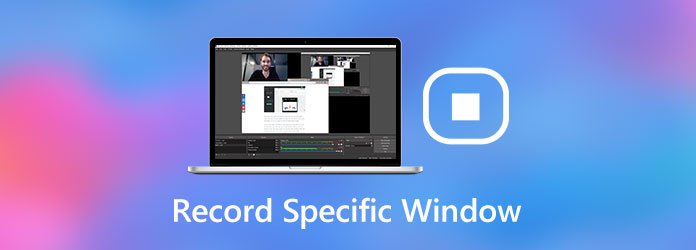
A free and open-source option that supports high-quality recording and live streaming. OBS allows users to choose recording areas, include webcam overlays, and capture system audio.
Camtasia
A premium tool widely used for professional tutorials. It offers advanced editing features and voiceover integration, ideal for creating polished instructional videos.
ScreenRec
Lightweight and simple, perfect for quick recordings with voice narration. It automatically saves recordings and allows cloud sharing.
For more software options, you can refer to Wikipedia’s list of screencasting software.
Preparing to Record
Before starting, ensure the following:
- Your microphone is set up and functioning properly.
- The screen area to record is clearly defined.
- Any unnecessary notifications or pop-ups are turned off to avoid distractions.
Recording a specific window can focus the audience’s attention, while recording the full screen is better for tutorials involving multiple applications.
Recording Tips for High-Quality Voiceover
High-quality audio is essential for professional content. Follow these tips:
- Use an external microphone instead of built-in laptop mic.
- Record in a quiet environment to reduce background noise.
- Speak clearly and at a moderate pace.
- Do a test recording to check audio levels and clarity.
For those interested in business-specific tutorials, you can explore this internal guide on Mastering Screen Recording on iPhone.
Mastering Screen Recording on iPhone
Step-by-Step Guide to Record Full Screen or Specific Window
- Install Your Chosen Software: Download OBS Studio, Camtasia, or ScreenRec.
- Select Recording Mode: Choose between full-screen or a specific window.
- Set Audio Input: Configure your microphone for voiceover.
- Adjust Recording Settings: Set resolution, frame rate, and output format.
- Start Recording: Begin narrating while performing actions on your screen.
- Edit and Export: Trim unnecessary parts, adjust audio, and export in desired format.
For quick editing tips, you can also read this internal article: A Deep Dive into Easy Screenshot Software for Windows.
Common Mistakes to Avoid
Even experienced users can make errors that reduce video quality. Common mistakes include:
- Poor audio quality due to low-quality microphone or background noise.
- Recording with unnecessary windows open, distracting viewers.
- Ignoring resolution and frame rate settings, resulting in blurry videos.
Avoiding these pitfalls ensures your recordings remain professional and effective.
Advanced Features to Explore
Modern screen recording tools offer features beyond simple recording:
- Annotations: Highlight areas or add text overlays for clarity.
- Zoom and Pan: Focus on critical sections of the screen during narration.
- Automatic Saving and Cloud Integration: Share content quickly and securely.
These advanced tools are particularly useful for business tutorials or online courses.
Best Screen Recording Software 2026
Conclusion
Learning to record full screen or specific window with voiceover is essential for creating professional, high-quality videos. By choosing the right tools, preparing your environment, and following best practices, anyone can produce content that engages and educates audiences effectively. Incorporate voiceover, use proper recording settings, and explore advanced features to maximize the impact of your tutorials or presentations.