The ERR_CONNECTION_TIMED_OUT error is one of the most common and frustrating issues you can encounter while browsing the internet. It signals that your browser successfully initiated a connection request to a website, but the website failed to respond within a set timeframe, leading to a timeout. This guide provides a comprehensive, step-by-step approach to diagnosing and fixing the ERR_CONNECTION_TIMED_OUT error, ensuring you can get back online quickly.
Table of Contents
-
Understanding the ERR_CONNECTION_TIMED_OUT Error
-
Initial Quick Fixes
-
Check Your Internet Connection and Restart Devices
-
Try Another Browser or Device
-
Disable Your VPN and Proxy Server
-
Comprehensive Software and Browser Fixes
-
Advanced Windows and Firewall Fixes
-
Perform a Clean Boot
-
Run the Windows Network Troubleshooter
-
Check Windows Firewall and Third-Party Antivirus
-
Reset Network Settings
-
Ensure TLS 1.2 is Enabled
-
Router and Network Configuration
-
When the Problem is on the Website’s End
-
Frequently Asked Questions (FAQ)
Understanding the ERR_CONNECTION_TIMED_OUT Error
Before diving into solutions, it’s helpful to understand what this error message actually means. When you type a web address into your browser, it sends a request to the website’s server. The server is supposed to respond, and a connection is established. The ERR_CONNECTION_TIMED_OUT error appears when your browser sends this request but never receives a response. The request “times out” after a period of waiting.
What Causes the Error?
The problem can stem from various sources along the data path:
-
Your local network or device: Issues with your Wi-Fi, Ethernet cable, or operating system settings.
-
Your browser: Corrupted cache, problematic extensions, or incorrect proxy settings.
-
Firewall or security software: A program on your computer or network might be blocking the connection.
-
The website’s server: The site itself could be down, experiencing high traffic, or blocking your IP address.
-
Internet Service Provider (ISP) or DNS: Your ISP might be having routing problems, or the DNS server you’re using can’t resolve the website’s address.
Initial Quick Fixes
Start with these simple checks, which often resolve the issue quickly without needing more complex troubleshooting.
Check Your Internet Connection and Restart Devices
The most basic, yet effective, first step is to ensure your internet connection is working. Try loading a few different websites. If none load, the problem is likely with your network.
-
Restart your computer: This can clear temporary software glitches.
-
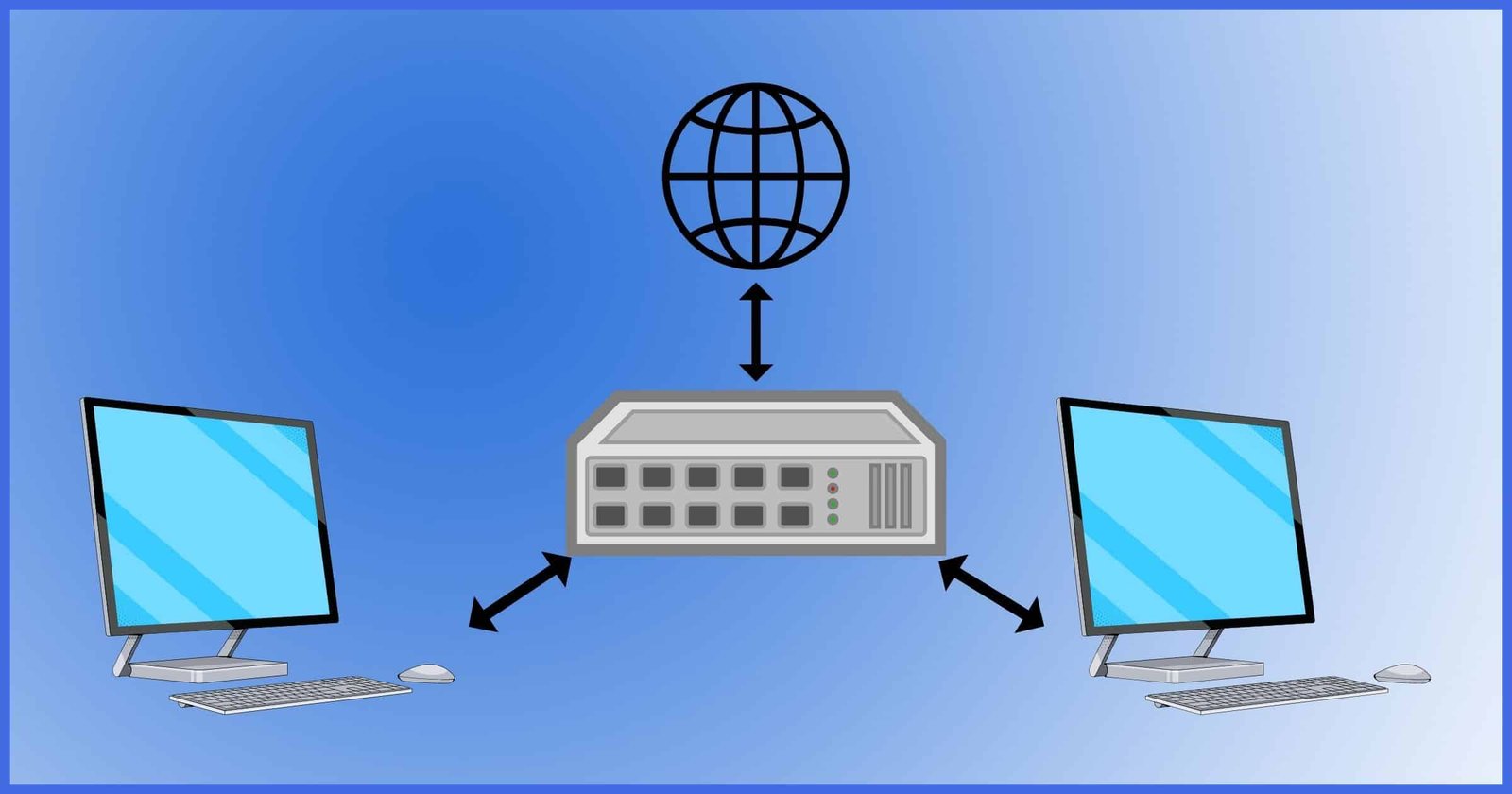
Restart your modem and router: Unplug both devices from power, wait for 60 seconds, and then plug them back in. Allow them a few minutes to fully reboot and re-establish a connection. One user reported that simply restarting their modem resolved the issue for all “problematic” websites.
Try Another Browser or Device
This is a crucial diagnostic test.
-
Use a different browser: If the error appears in Chrome, try opening the same site in Edge, Firefox, or Opera. If it works in one but not the other, the problem is likely with your primary browser’s settings or extensions.
-
Use a different device: Try accessing the website from another computer, tablet, or smartphone on the same network. If the error persists across multiple devices, the problem is likely with your network or the website itself. If it works on another device, the issue is isolated to your primary computer.
Disable Your VPN and Proxy Server
VPNs and proxy servers can sometimes be the culprit. They reroute your internet traffic, and if the service is slow or misconfigured, it can cause a timeout.
Comprehensive Software and Browser Fixes
If the initial quick fixes don’t work, it’s time to dig deeper into your device’s software.
Clear Your Browser Cache and Cookies
A corrupted browser cache or outdated cookies can interfere with the connection process.
-
Open your browser’s settings or history.
-
Find the option to clear browsing data.
-
Select All time for the time range.
-
Check the boxes for Cookies and other site data and Cached images and files.
-
Click Clear data.
-
Close and restart your browser before trying again.
Flush Your DNS Cache
Your computer stores a local cache of DNS (Domain Name System) lookups to speed up browsing. However, if this cache becomes outdated or corrupted, it can cause connection problems. Flushing it forces your computer to look up the website’s IP address again.
-
Open Command Prompt as an administrator.
-
Type the following command and press Enter:
ipconfig /flushdns
-
You should see a message confirming the DNS Resolver Cache was successfully flushed.
Reset Your TCP/IP Stack
The TCP/IP stack is the set of network protocols your computer uses. Resetting it to its default state can fix underlying issues.
-
Open Command Prompt as an administrator.
-
Run the following commands one by one, pressing Enter after each:
-
netsh winsock reset
-
netsh int ip reset
-
Restart your computer for the changes to take effect.
Change Your DNS Server
Your ISP’s default DNS servers can sometimes be slow or have issues. Changing to a public DNS server like Google’s or Cloudflare’s is a common fix.
-
Go to Control Panel > Network and Sharing Center > Change adapter settings.
-
Right-click on your active network connection (Ethernet or Wi-Fi) and select Properties.
-
Select Internet Protocol Version 4 (TCP/IPv4) and click Properties.
-
Select Use the following DNS server addresses.
-
For Preferred DNS server, enter 4.2.2.2 and for the Alternate DNS server, enter 4.2.2.4 as suggested by Microsoft support, or use Google’s Public DNS (8.8.8.8 and 8.8.4.4).
Disable Browser Extensions
Extensions, especially ad-blockers or privacy-related ones, can sometimes block or interfere with connections.
-
Open your browser.
-
Access the extensions or add-ons menu.
-
Disable all extensions.
-
Try to load the website. If it works, re-enable your extensions one by one to find the culprit.
Advanced Windows and Firewall Fixes
If software-related issues persist, the problem might be with your operating system or security software.
Perform a Clean Boot
Third-party applications and services that start with Windows can sometimes interfere with network connections. A clean boot starts Windows with a minimal set of drivers and startup programs, helping you identify if background software is the cause.
-
PressWindows + R typemsconfig and press Enter.
-
Go to the Services tab, check Hide all Microsoft services, and click Disable all.
-
Go to the Startup tab and click Open Task Manager.
-
In Task Manager, disable all startup items.
-
Restart your computer. If the error is resolved, a disabled service or program was the issue. You can then systematically re-enable them to find the specific one causing the problem.
Run the Windows Network Troubleshooter
Windows has built-in tools to diagnose and fix common network problems.
-
Go to Settings > Network & Internet > Status.
-
Click on Network troubleshooter or Diagnose.
-
Follow the on-screen instructions.
Check Windows Firewall and Third-Party Antivirus
Overly strict firewalls or antivirus programs can block legitimate connections.
-
Temporarily disable your antivirus/firewall to see if it resolves the error. If it does, you may need to add the website or browser to its exception list.
-
Check Windows Defender Firewall: Go to Control Panel > Windows Defender Firewall > Allow an app or feature through Windows Defender Firewall. Ensure your browser is allowed for both Private and Public networks.
Reset Network Settings
Resetting all network adapters and settings can resolve persistent connection issues.
-
Go to Settings > Network & Internet > Status.
-
Scroll down and click on Network reset.
-
Click Reset now.
-
Your computer will restart in five minutes. This will remove and reinstall all your network adapters, nd set other networking components back to their original settings.
Warning: This will forget your Wi-Fi passwords and VPN connections.
Ensure TLS 1.2 is Enabled
Some modern websites require the TLS 1.2 security protocol for connections. If it’s disabled, it can cause a timeout.
-
Search for Internet Options in the Start menu and open it.
-
Go to the Advanced tab.
-
Scroll down to the Security section.
-
Ensure the checkbox for Use TLS 1.2 is selected (checked).
-
Click Apply and OK, then restart your browser.
Router and Network Configuration
Sometimes, the solution lies in your network’s hardware configuration rather than in your computer.
Check Router and ISP Settings
The problem might lie with your router or even your Internet Service Provider (ISP).
-
Restart your router: As mentioned in the initial steps, a simple restart can clear up temporary routing issues.
-
Check for ISP outages: Visit your ISP’s website or social media page to see if there are any reported outages in your area.
-
Inspect router firewall settings: Log into your router’s admin panel and check if any firewall rules are blocking specific ports or websites. For instance, if you are trying to access a web interface on a port like 8443 and are getting this error, a firewall is likely blocking that specific port.
Check for VPN or proxy interference.
Even if you don’t use a VPN, some corporate networks or security software might route traffic through a proxy server automatically. A Microsoft expert noted that even VPN software that isn’t actively running can sometimes cause conflicts. Ensure any VPN software is fully uninstalled or disabled as a test.
When the Problem is on the Website’s End
Occasionally, the error is entirely outside your control.
Server-Side Issues
The website’s server might be experiencing problems, high traffic, or could be temporarily offline. You can use a tool like “Down For Everyone Or Just Me” to check if the site is down globally. If it is, you simply have to wait for the site administrator to resolve it.
Firewall Blocking Specific Ports
If the website uses a non-standard port (like 8443 For Plesk administration panels, a firewall at the server level, on your local network, or even at your ISP could be blocking it. In this case, the solution often requires contacting the network administrator or website host to have the port opened.
DNS Resolution Problems
While DNS issues usually cause a different error (ERR_NAME_NOT_RESOLVEDIf a client’s DNS server provides an incorrect IP address, it could still lead to a timeout if that IP does not lead to a responsive server.
Frequently Asked Questions (FAQ)
Q1: What does ERR_CONNECTION_TIMED_OUT mean?
It means your browser sent a request to a website, but the website’s server did not respond in time, causing the connection attempt to expire.
Q2: Is ERR_CONNECTION_TIMED_OUT a problem with my computer?
Not necessarily. The error can be caused by issues on your computer, your network, your internet service provider, or the website itself.
Q3: Will clearing my browser cache fix the error?
Clearing your browser cache can fix the error if it was caused by corrupted or outdated cache files interfering with the connection.
Q4: How do I flush my DNS cache?
Open Command Prompt as an administrator, typeipconfig /flushdns and press Enter. This will clear your computer’s local DNS cache.
Q5: Can a VPN cause ERR_CONNECTION_TIMED_OUT?
Yes. VPNs and proxy servers can slow down your connection or route your traffic in a way that causes a timeout. Temporarily disconnecting from your VPN is a standard troubleshooting step.
Q6: Could a firewall be blocking the connection?
Absolutely. Both the firewall on your computer and the firewall on your network (such as your router) can block specific connections. This is a common cause, especially for accessing admin panels on non-standard ports.