Recording your screen on a Chromebook has become an essential skill for students, professionals, teachers, and content creators. Whether you want to create tutorials, record online classes, capture gameplay, or save important meetings, knowing how to Record chromebook screen can make your digital life much easier.
Unlike many other devices, Chromebooks come with built-in screen recording features, which means you don’t always need to install third-party software. This guide will walk you through everything you need to know—from basic steps to advanced tips—so you can confidently record your screen.
What Does Screen Recording Mean on a Chromebook?
Screen recording is the process of capturing everything that appears on your screen, including movements, clicks, and sometimes audio. On a Chromebook, this feature allows you to:
- Record online classes or meetings
- Create educational tutorials
- Capture gameplay or app usage
- Save video calls for later review
- Demonstrate software processes
With Chrome OS updates, recording your screen has become simple and accessible to everyone.
Built-In Screen Recorder on Chromebook
One of the biggest advantages of using a Chromebook is its built-in screen capture and recording tool. You don’t need to download anything extra to Record chromebook screen efficiently.
How to Open the Screen Recording Tool
Follow these steps:
- Press Shift + Ctrl + Show Windows key (rectangle with lines)
- A toolbar will appear at the bottom of your screen
- Click on the Screen Record option
From here, you can choose how you want to record.
Different Recording Modes Available
Chromebooks give you flexibility in recording your screen. You can choose from three main modes:
Full Screen Recording
- Records everything visible on your screen
- Best for tutorials or presentations
Partial Screen Recording
- Select a specific area to record
- Useful when focusing on one section
Window Recording
- Records a single app window
- Ideal for app demonstrations
How to Record Chromebook Screen Step-by-Step
Let’s break it down into simple steps so anyone can follow.
Step 1: Open Screen Capture Tool
Use the keyboard shortcut mentioned earlier.
Step 2: Select Screen Record Mode
Click the video camera icon.
Step 3: Choose Recording Area
Pick full screen, partial, or window recording.
Step 4: Enable or Disable Audio
You can turn on:
- Microphone audio
- System audio (if available)
Step 5: Start Recording
Click the record button.
Step 6: Stop Recording
Click the stop button in the system tray.
Once finished, your recording is automatically saved to your Downloads folder.
How to Record Chromebook Screen with Audio
Audio recording is important if you want to explain something or record a lecture.
Microphone Recording
- Turn on the microphone from settings
- Speak clearly during recording
System Audio
Some Chromebooks support system sound recording, but it depends on device updates.
Tips for Better Audio:
- Use headphones with a microphone
- Record in a quiet place
- Test audio before starting
Where Are Screen Recordings Saved?
After you Record chromebook screen, the file is saved automatically.
Default Location
File Format
You can:
- Rename the file
- Move it to Google Drive
- Share it easily
How to Edit Screen Recordings on Chromebook
Chromebooks have limited built-in editing tools, but you can still do basic edits.
Simple Editing Options
- Trim video using Gallery app
- Rename files
- Adjust playback
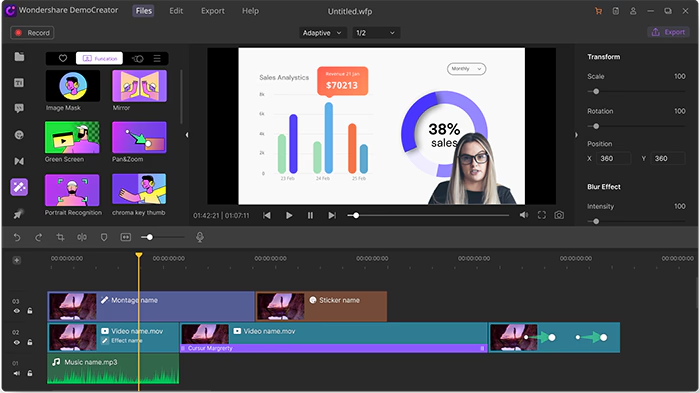
Using Online Tools
You can use browser-based tools for:
- Cutting clips
- Adding text
- Enhancing video quality
Using Extensions to Record Chromebook Screen
If you want more advanced features, browser extensions can help.
Popular Features in Extensions
- Advanced editing
- Webcam overlay
- Cloud storage
- Annotation tools
When Should You Use Extensions?
- For professional videos
- For content creation
- For detailed tutorials
Tips for Better Screen Recording
To get high-quality results, follow these tips:
Prepare Before Recording
- Close unnecessary tabs
- Clean your desktop
- Plan your content
Use Good Lighting (if using webcam)
- Sit in a well-lit area
- Avoid dark backgrounds
Speak Clearly
- Maintain a steady pace
- Avoid background noise
Keep Videos Short
- Focus on one topic at a time
- Break long recordings into parts
Common Problems and Solutions
Sometimes users face issues when trying to Record chromebook screen. Here are some solutions.
Screen Recording Not Working
- Restart your Chromebook
- Update Chrome OS
No Audio in Recording
- Check microphone permissions
- Ensure audio is enabled
Laggy Recording
- Close background apps
- Reduce screen resolution
Advantages of Recording Screen on Chromebook
There are many benefits to using Chromebook’s recording features:
- Easy to use
- No extra software required
- Fast performance
- Lightweight system
- Ideal for students and professionals
Best Use Cases for Screen Recording
Here are some common ways people use screen recording:
Education
- Record lectures
- Create tutorials
- Share notes
Work
- Record meetings
- Demonstrate tools
- Create presentations
Personal Use
- Capture moments
- Record gameplay
- Save video calls
Privacy and Security Tips
When you Record chromebook screen, it’s important to protect your privacy.
Avoid Recording Sensitive Information
- Close personal tabs
- Hide private data
Get Permission
- Inform others before recording meetings
Store Files Securely
- Use Google Drive or secure storage
Chromebook Screen Recording Shortcuts
Here are some useful shortcuts:
- Shift + Ctrl + Show Windows → Open capture tool
- Ctrl + Shift + Q (twice) → Sign out quickly
Learning shortcuts helps you record faster and more efficiently.
Comparing Built-In Tool vs Extensions
| Feature |
Built-in Tool |
Extensions |
| Ease of Use |
Very Easy |
Moderate |
| Installation |
Not Needed |
Required |
| Editing |
Basic |
Advanced |
| Performance |
Fast |
Depends |
Future of Screen Recording on Chromebooks
Chromebooks continue to improve with updates. Future features may include:
- Better video quality
- Built-in editing tools
- Enhanced audio recording
- Cloud integration
These improvements will make it even easier to Record chromebook screen for any purpose.
Final Thoughts
Learning how to record your screen on a Chromebook is a valuable skill that can boost productivity, improve communication, and help you create useful content. With built-in tools and easy shortcuts, anyone can start recording within minutes.
Whether you’re a student attending online classes, a professional working remotely, or someone who wants to create helpful tutorials, Chromebook screen recording offers a simple and effective solution.