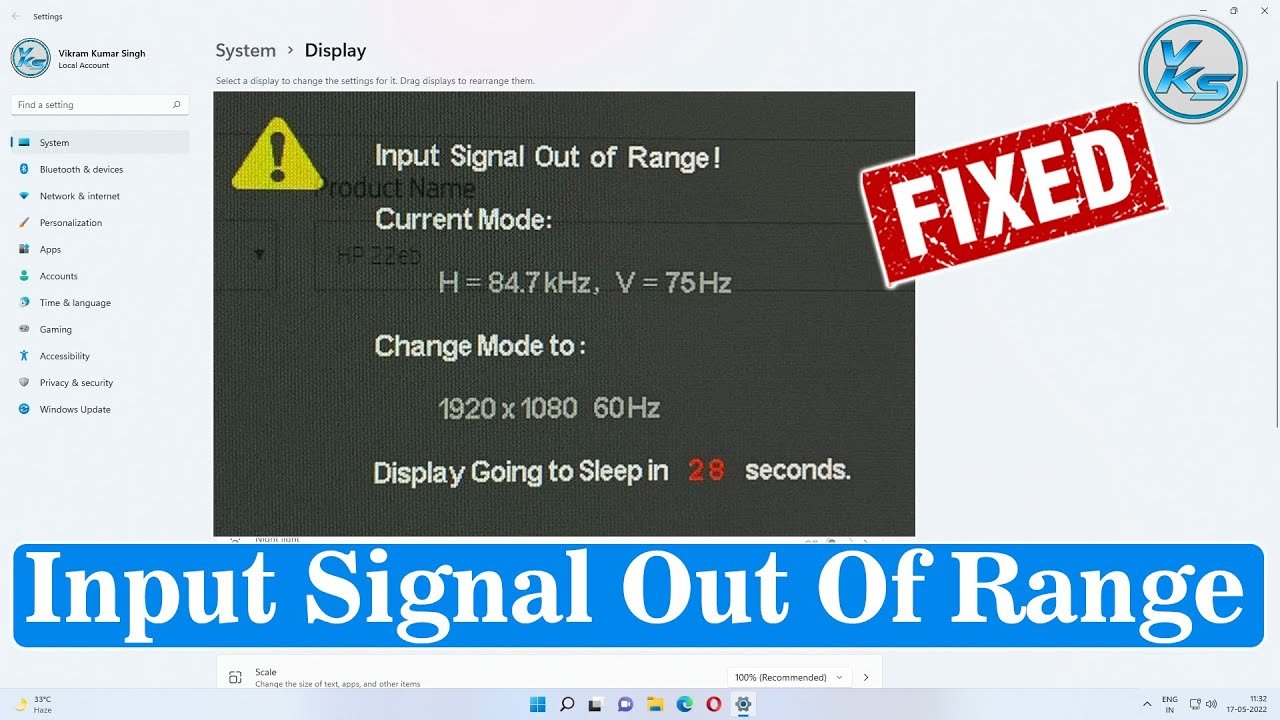
It happens without warning. You turn on your HP computer or plug a laptop into an external HP monitor, and instead of your desktop, the screen goes black. A small box floats in the void, showing the dreaded words: Input Signal Out of Range Monitor HP.
Your heart sinks. Did the screen break? Is the graphics card dead? Neither. In 95% of cases, this is a simple communication error between your computer and your monitor. Think of it like two people speaking different volumes—one is shouting, the other whispering, and neither understands the other.
This article walks you through every safe, effective fix for the Input Signal Out of Range Monitor HP error. No hardware skills required. No risky software. Just clear steps that respect your time and your equipment.
What Does “Input Signal Out of Range” Actually Mean on an HP Monitor?
Before fixing anything, understand the problem. Your HP monitor has a fixed set of resolutions and refresh rates it can display. For example, a typical HP 24-inch monitor might support 1920×1080 pixels at 60Hz. Your computer’s graphics card, however, might be trying to send 2560×1440 at 75Hz or 1280×720 at 120Hz.
When the incoming signal exceeds the monitor’s maximum supported horizontal or vertical frequency (measured in kHz for horizontal and Hz for vertical), the monitor raises a safety shield. It refuses to show garbage. Instead, it displays that black screen with white text.
This is not a failure. It is a protective feature. Your monitor is stopping itself from trying to display a signal it cannot handle, which could damage internal circuits over time.
The Input Signal Out of Range Monitor HP error appears most often after:
-
Connecting a new PC to an old HP monitor
-
Changing graphics settings to a resolution the monitor cannot support
-
Updating graphics drivers that reset display modes
-
Booting into a game or application that forces a non-standard resolution
First Steps Before You Change Any Settings
When the screen is black, you cannot see menus. Do not panic. Every HP monitor has physical buttons (usually on the bottom bezel or right side). Press the Menu or OK button. If the monitor’s own on-screen display (OSD) works—meaning you see volume, brightness, or input selection—the monitor itself is fine. The problem is the incoming signal.
If the OSD does not appear, test the monitor with another device: a laptop, a DVD player, or even a game console. If the second device works, your original computer’s output settings are wrong. If no device works, the monitor may need service. But in most cases, the monitor is healthy and the computer needs a gentle correction.
7 Proven Methods to Fix Input Signal Out of Range Monitor HP
These methods are arranged from simplest to most advanced. Start at the top. Stop when the screen returns.
Method 1 – Force Lower Resolution Using Windows Recovery (No Screen Needed)
You cannot see, but you can still type. This trick works on Windows 10 and 11.
-
Turn off your PC by holding the power button for 10 seconds.
-
Turn it back on. As soon as you see any activity (fans spin, lights turn on), press the power button again to force shutdown.
-
Repeat this power on/power off cycle three times in a row.
-
On the fourth boot, Windows will enter Automatic Repair mode. The screen may remain black, but wait 30 seconds.
-
Press Enter once (this selects “Restart” if you could see the menu).
-
Immediately after pressing Enter, press F4 three times. This forces Safe Mode.
In Safe Mode, Windows loads with a basic driver at 800×600 or 1024×768—a resolution almost every HP monitor supports. The screen should appear.
Once visible:
-
Right-click desktop → Display settings → Advanced display settings
-
Change resolution to your monitor’s native resolution (check sticker on back of HP monitor)
-
Click Apply → Keep changes
Restart normally. The Input Signal Out of Range Monitor HP error should be gone.
Method 2 – Boot Into BIOS to Reset Display Output
The Basic Input/Output System (BIOS) ignores Windows graphics settings completely. If you can enter BIOS, you bypass the bad signal.
-
Shut down the PC.
-
Turn it on and repeatedly press F10 (for most HP computers) or Esc (to see the boot menu, then F10). Some HP models use F2 or F6.
-
Wait 20 seconds. If the monitor remains black but the keyboard lights respond, you are in BIOS. You are working blind, but that is okay.
-
Press F9 to load setup defaults (this resets display to standard VGA mode).
-
Press F10 to save and exit.
The PC will restart with default display parameters, often fixing the Input Signal Out of Range Monitor HP problem immediately.
Method 3 – Use a Second Monitor or TV as a Workaround
If you have access to any other screen—even an old TV with HDMI—use it as a temporary display.
-
Connect your PC to the second screen using HDMI, VGA, or DVI.
-
The second screen will likely show your desktop at the bad resolution. That is fine.
-
Right-click desktop → Display settings → Identify displays.
-
Select the HP monitor (it will appear as a second box).
-
Scroll to “Advanced display settings” → Select the HP monitor.
-
Change its resolution to something lower, like 1280×720 or 1366×768.
-
Click “Apply” and then “Keep changes.”
Now the HP monitor receives a supported signal. You can raise the resolution step by step until you find the maximum stable setting.
Method 4 – Physical Reset: Unplug Power and Signal Cables
Static electricity or corrupt EDID (Extended Display Identification Data) can cause false “out of range” warnings. A hard reset often clears this.
-
Turn off both the PC and the HP monitor.
-
Unplug all cables from the monitor: power cord, HDMI, VGA, DisplayPort, and any USB hubs.
-
Press and hold the monitor’s physical power button for 30 seconds. This drains residual charge.
-
Leave everything unplugged for 5 minutes.
-
Reconnect only the power cord and one video cable (preferably the same type you used before).
-
Turn on the monitor first, then the PC.
In many cases, the monitor renegotiates the signal and the Input Signal Out of Range Monitor HP warning disappears. This works because the monitor’s internal microcontroller forgets previous failed handshakes.
Method 5 – Change Refresh Rate Using Keyboard Shortcuts (Windows)
If you can see the desktop but the error returns when opening a specific app (like a game), the refresh rate is the culprit. You can lower it without menus.
-
Press Windows key + I to open Settings.
-
Type “refresh rate” using the keyboard. Windows search will highlight the correct menu.
-
Press Tab three times, then Enter.
-
Use Arrow keys to select a lower refresh rate (60Hz is universally safe).
Press Enter to apply.
This method requires patience, but it works even if parts of the screen flicker.
Method 6 – Update or Roll Back Graphics Drivers in Safe Mode
Corrupt drivers can lock a resolution that overrides monitor limits. Safe Mode (see Method 1) lets you fix this.
Once in Safe Mode:
-
Right-click Start button → Device Manager.
-
Expand “Display adapters.”
-
Right-click your graphics card (Intel, NVIDIA, AMD) → Properties → Driver tab.
-
Click “Roll Back Driver” if available. If not, click “Uninstall Device.”
-
Check “Delete the driver software for this device” → Uninstall.
-
Restart normally. Windows will install a basic driver.
After restart, download the correct driver from HP’s official support website (using your PC’s serial number). Install it. The Input Signal Out of Range Monitor HP error should not return because the fresh driver reads the monitor’s limits correctly.
Method 7 – Use HP Display Center Software (If You Can See the Screen Even Briefly)
Some HP monitors work with the free HP Display Center app from the Microsoft Store. If your screen flashes on for a few seconds before going black, use that window.
-
Immediately when the screen appears, press Windows key and type “HP Display Center.”
-
Open the app.
-
Click on “Display settings” → “Resolution management.”
-
Enable “Hide modes this monitor cannot display.”
-
Select a confirmed working resolution.
This permanently prevents the PC from sending an unsupported signal to the HP monitor.
Preventing the Input Signal Out of Range Monitor HP Error From Returning
Once fixed, you want the problem gone forever. Here is how to build a bulletproof setup.
Know Your HP Monitor’s Limits
Every HP monitor has a specifications sticker on the back. Look for:
-
Maximum resolution (e.g., 1920×1080)
-
Vertical frequency range (e.g., 50-76Hz)
-
Horizontal frequency range (e.g., 30-83kHz)
Write these numbers down. Never set your PC’s output above these limits.
Set a Custom Resolution Safely (For Advanced Users Only)
If you need a non-standard resolution (common for retro gaming or specific software), use the graphics card’s official control panel (NVIDIA Control Panel, AMD Radeon Software, or Intel Graphics Command Center). These tools only show resolutions the monitor reports as compatible. Avoid third-party “resolution changer” tools—they ignore safety checks.
Disable “Ultra HD” or “Deep Color” Modes if Unnecessary
Some HP monitors have enhanced color modes that increase signal bandwidth. Over HDMI, this can push the pixel clock too high, triggering an out-of-range warning even at a normal resolution.
In your monitor’s on-screen menu:
This keeps the signal within the monitor’s true capabilities.
When the Input Signal Out of Range Monitor HP Error Is Not Your Fault
Sometimes the monitor itself misreads the signal. This is rare but possible. HP monitors store EDID data—a tiny file describing their capabilities. If this file corrupts, the monitor tells the computer “I can handle 4K” when physically it cannot.
How to Test for a Corrupt EDID
-
Connect your PC to a different monitor (any brand).
-
On the working screen, download Monitor Asset Manager (from a trusted tech site) or Custom Resolution Utility (CRU).
-
Run the tool and load the data from your HP monitor (even if it is disconnected, Windows remembers it).
-
Look for impossible values: maximum resolution listed as 4096×2160 on a 1080p panel, or refresh rates above 75Hz on a 60Hz panel.
If you see corrupt data, the monitor needs a firmware reset. Contact HP support. In the meantime, use the “Force lower resolution” method (Method 1) every time you boot.
Cable Quality Matters More Than You Think
A damaged or low-quality HDMI or VGA cable can carry an unstable signal. The monitor interprets instability as a request for an out-of-range mode.
Replace your cable if:
-
The error happens only when you wiggle the cable.
-
The error appears at random times, not just at boot.
-
The screen shows artifacts (colored dots or lines) before going black.
Use a certified cable rated for your resolution. For 1080p 60Hz, any decent cable works. For higher, look for “High Speed HDMI” or “DisplayPort certified.”
Frequently Asked Questions (Input Signal Out of Range Monitor HP)
Can this error damage my HP monitor permanently?
No. The error is a protective lockout. It prevents damage. Your monitor is safer displaying that black box than trying to show a signal it cannot handle.
Why does this happen only after waking from sleep?
When your PC sleeps, the monitor turns off. Upon waking, the PC sometimes sends the last used resolution before confirming the monitor is ready. If that resolution is borderline, the monitor rejects it. Update your graphics driver to solve sleep-related occurrences.
Does using a VGA to HDMI adapter cause this?
Yes, often. Adapters can misreport the monitor’s supported timings. Use a direct cable matching your monitor’s native input. If you must use an adapter, choose an “active” adapter (one with its own chip and external power). Passive adapters are a common cause of the Input Signal Out of Range Monitor HP error.
My HP monitor works with another computer but not mine. Why?
Your computer’s graphics software has saved a bad resolution or refresh rate as the default. Follow Method 1 (Safe Mode) to reset it. The monitor is innocent.
Will resetting Windows fix this?
A full Windows reset is overkill. It would work because it resets all display settings, but you lose time and data. Use the methods above first. Only reset Windows if the error appears in Safe Mode and BIOS, which indicates a deeper hardware handshake issue.
Final Check – Your Step-by-Step Recovery Card
Print this (or save it offline). When you see Input Signal Out of Range Monitor HP, do this in order:
-
Do not touch any cables yet. Press the monitor’s Menu button. If OSD works, the monitor is fine.
-
Force Windows into Safe Mode (on/off cycle three times, then F4).
-
Once in Safe Mode, lower resolution to 1024×768 or 1280×720.
-
Restart normally. If the error returns, repeat steps but use “Uninstall graphics driver” in Safe Mode.
-
If still black, enter BIOS (F10 on boot) and load defaults (F9 → F10).
-
If even BIOS is black, unplug everything for 5 minutes and hard reset (power button 30 seconds).
-
Last resort: Test with another screen or call HP support (1-800-334-5144 in the US).
Conclusion: You Just Saved Yourself Time and Money
The Input Signal Out of Range Monitor HP error is frustrating but shallow. It sits on the surface of your system, not deep in broken hardware. With the methods above, you have learned to communicate with your monitor on its own terms—respecting its limits while getting full use from your computer.
Remember: every fix here is reversible. You cannot break your monitor by trying these steps. You can only learn more about how it thinks. And next time the screen goes black, you will smile instead of sigh, because you already know the way back.