How to Add Screen Recorder to Control Center: Easy Setup Guide

 Business
 In today’s digital world, capturing what happens on your phone screen has become a normal part of daily life. Whether you want to save a video call with a loved one, record a cooking tutorial, or show a family member how to use an app, a screen recorder is a gentle tool for sharing knowledge and preserving memories. Apple and Android manufacturers understood this need, which is why they built screen recording right into their operating systems. However, many users do not realize that this feature is not always visible by default. You must first learn how to add screen recorder to Control Center on an iPhone or access the quick settings panel on Android devices. This detailed guide will walk you through every step, explain why the recorder might be missing, and offer solutions for common problems. By the end, you will have the screen capture tool ready at your fingertips, without needing any extra applications or harmful content.
Why You Might Want a Screen Recorder in Your Control Panel
Before diving into the technical steps, it helps to understand why this feature matters. A screen recorder allows you to capture exactly what appears on your display, along with audio from the microphone or internal sound. This can be extremely useful for:
-
Helping elders or friends troubleshoot a phone issue by recording your own screen as you demonstrate a solution.
-
Saving temporary content such as a video story that disappears after 24 hours.
-
Creating respectful tutorials for work or community groups without needing expensive software.
-
Preserving video calls with grandparents who live far away (always ask permission first out of courtesy).
-
Documenting achievements in educational apps or creative projects.
The beauty of having the recorder inside the Control Center is speed. You do not need to open a separate app, navigate through settings, or remember complex key combinations. A simple swipe and a tap start the recording instantly. That is precisely why learning how to add screen recorder to Control Center is one of the first skills any smartphone user should acquire.
Understanding the Control Center on Different Devices
The term “Control Center” is most commonly associated with Apple’s iPhone and iPad. On Android phones, the equivalent is usually called the “Quick Settings” panel. Both serve the same purpose: giving you one-touch access to Wi-Fi, Bluetooth, brightness, volume, and media controls. However, the process to customize these panels differs slightly between operating systems. This guide will cover both major platforms in detail, so regardless of whether you hold an iPhone or an Android device, you will find clear instructions.
Important note: Screen recording is a built-in, halal (permissible) feature that does not promote anything harmful. It is simply a tool, like a pen or a camera. What matters is how you use it. Always respect others’ privacy and do not record anything that might cause harm or distress.
How to Add Screen Recorder to Control Center on iPhone (iOS)
Apple introduced the native screen recording feature with iOS 11. If your iPhone runs iOS 11 or later (which includes virtually all modern iPhones), you have this capability. However, the screen recorder icon is not automatically placed in the Control Center. You must manually add it. Follow these steps carefully.
Step 1: Open the Settings App
Unlock your iPhone and locate the grey gear icon labeled “Settings.” Tap to open it. This is the central hub where all system preferences are stored.
Step 2: Navigate to Control Center
Scroll down the Settings menu until you see “Control Center.” It is usually located between “Display & Brightness” and “Siri & Search” on newer iOS versions. Tap on it.
Step 3: Tap “Customize Controls”
Inside the Control Center settings, you will see a section labeled “Customize Controls.” This is where the magic happens. Tap on it. You will now see two lists:
-
Include: These are features already present in your Control Center.
-
More Controls: These are available features you can add.
Step 4: Find the Screen Recording Option
Scroll through the “More Controls” list. Look for an entry called “Screen Recording.” It typically has a small icon that looks like a solid circle inside a larger ring. If you do not see it, make sure your iOS version is up to date (go to Settings > General > Software Update).
Step 5: Add Screen Recorder to Control Center
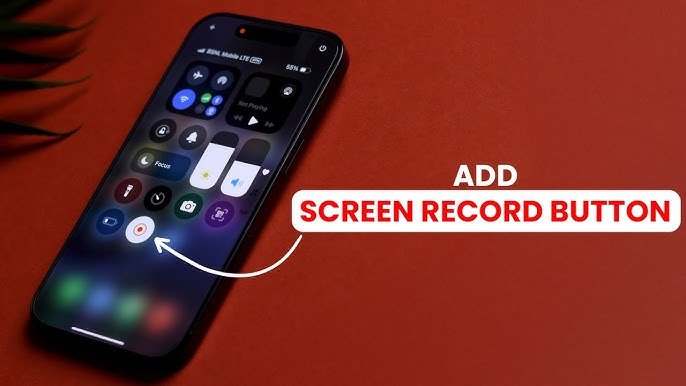
Next to “Screen Recording,” you will see a green plus sign (+) button. Tap that plus sign. Instantly, the option moves from the “More Controls” list to the “Include” list. You have successfully learned add screen recorder to Control Center on your iPhone. To rearrange its position, grab the three horizontal lines (hamburger icon) next to the feature and drag it up or down.
Step 6: Verify the Addition
Swipe down from the top-right corner of your screen (on iPhones with Face ID) or swipe up from the bottom edge (on iPhones with a Home button) to open Control Center. You should now see a circular record button. If you have many controls, you might need to swipe left or right within the Control Center to find it.
How to Use the Screen Recorder Once Added
Using the recorder is straightforward:
-
Open the Control Center.
-
Press and hold the screen recording icon (a circle inside a ring) to access recording options. A pop-up menu will appear.
-
Tap the microphone icon if you wish to record your voice along with the screen. When the microphone is red, it is active.
-
Tap “Start Recording.” A three-second countdown will appear, then recording begins. A red pill-shaped indicator will appear at the top-left corner of your screen.
-
To stop recording, open Control Center again and tap the red recording icon. Alternatively, tap the red timer bar at the top of your screen and select “Stop.”
The video will automatically save to your Photos app, where you can edit, trim, or share it as needed.
Troubleshooting iPhone Screen Recorder Issues
Even after you learn how to add screen recorder to Control Center, you might face occasional glitches. Here are common problems and their gentle solutions:
| Problem | Possible Solution |
|---|---|
| Icon does not appear after adding | Restart your iPhone. A fresh boot often refreshes the Control Center layout. |
| Recording stops by itself | Check your storage space. Low storage can interrupt recording. Delete unused files. |
| No sound in recordings | Make sure you enabled the microphone from the 3D Touch/Haptic Touch menu before starting. |
| Red bar appears but no video saved | Update iOS. Older versions had bugs. Go to Settings > General > Software Update. |
How to Add Screen Recorder to Quick Settings on Android
Android devices vary significantly depending on the manufacturer (Samsung, Google Pixel, OnePlus, Xiaomi, etc.). However, most modern Android phones running Android 11 or later include a native screen recorder. Google even made it a standard part of Android 12 and above. The process to add it to your Quick Settings panel (the Android equivalent of Control Center) is similar across brands.
General Method for Stock Android (Pixel, Motorola, Nokia)
If you have a phone with near-stock Android, follow these steps:
-
Swipe down from the top of the screen once to see notifications. Swipe down a second time to fully expand the Quick Settings panel.
-
Look for a pencil icon or an “Edit” button (usually at the bottom or top-right corner). Tap it.
-
You will now see all available Quick Settings tiles. Scroll through them until you find “Screen Recorder.”
-
Press and hold the Screen Recorder tile, then drag it up to the active Quick Settings area.
-
Tap the back arrow or “Done” to save. You have now learned how to add screen recorder to Control Center in Android terms.
Samsung One UI Method
Samsung phones use a custom interface called One UI. The process is slightly different:
-
Swipe down from the top of the screen twice to open the full Quick Settings panel.
-
Tap the three vertical dots (menu icon) in the top-right corner.
-
Select “Edit buttons” or “Edit quick settings.”
-
Scroll down to find “Screen Recorder” among the hidden buttons.
-
Drag it to the active panel area. You can also rearrange other buttons as you like.
-
Tap “Done” or simply swipe up to close.
Xiaomi MIUI Method
Xiaomi’s MIUI interface places screen recording in a slightly different location:
-
Swipe down from the top to open Control Center (MIUI separates notifications and Control Center).
-
Tap the “Edit” icon (often a pencil or a square with a dot).
-
Look for the “Screen Recorder” tile. If not visible, swipe left on the hidden tiles.
-
Tap the tile to add it, or drag it to the main area.
-
Tap “Save” or the back button.
How to Use Android Screen Recorder
Once you have added the tile, using it is simple:
-
Swipe down to open Quick Settings.
-
Tap the Screen Recorder tile.
-
A dialog box will appear asking if you want to record audio (media sounds, microphone, or both). Make your choice.
-
Tap “Start.” A countdown begins, followed by a recording indicator in the status bar.
-
To stop, swipe down and tap the recorder notification, or tap the stop button in the floating recording panel.
The recording will be saved in your Photos or Gallery app, often inside a dedicated “Screen recordings” folder.
Adding the Screen Recorder on Older Devices Without Native Support
Not all phones have a built-in screen recorder. If your device runs Android 10 or earlier, or an older iOS version, you might not find the option even after following the above steps. In such cases, do not worry. You have two ethical, safe alternatives:
Option 1: Update Your Operating System
Check if your phone supports a newer OS version. For iPhones, go to Settings > General > Software Update. For Android, go to Settings > System > System Update. A simple update might add the native screen recorder.
Option 2: Use a Trusted Third-Party App from Official Stores
If an update is not possible, you can download a screen recorder app from the Apple App Store or Google Play Store. However, be cautious. Read reviews, check privacy policies, and avoid apps that request unnecessary permissions (like access to contacts or location). Some safe and popular options include:
-
AZ Screen Recorder (Android – free, no watermark)
-
TechSmith Capture (iOS & Android – from the makers of Camtasia)
-
Screen Recorder – No Ads (Android – open source)
After installing such an app, you might be able to add its quick-launch shortcut to your Control Center or home screen. However, note that third-party apps cannot always integrate perfectly with the native Control Center. The best experience still comes from learning how to add screen recorder to Control Center using the built-in method.
Advanced Tips for Better Screen Recordings
Now that you know add screen recorder to Control Center on both major platforms, let us explore some advanced settings to improve your recording quality. These tips will help you create clear, respectful, and useful videos without any harmful elements.
Adjusting Video Quality
On iPhones, the native recorder captures at the screen’s native resolution (usually 720p, 1080p, or even 4K on newer models). You cannot change this directly, but you can ensure high quality by keeping your screen clean and your phone well-lit if you are recording the physical environment around the screen.
On Android, many native recorders allow you to adjust resolution and bitrate. To access these settings:
-
Open the Quick Settings panel.
-
Long-press the Screen Recorder tile (or tap the gear icon next to it).
-
Look for options like “Video quality,” “Resolution,” or “Frame rate.” Choose 1080p and 30fps for a good balance between quality and file size.
Recording Internal Audio (Without Microphone)
Sometimes you only want to capture the sound coming from the phone itself, such as a nasheed (Islamic song without instruments) or a lecture. Both iOS and Android support internal audio recording, but there are restrictions:
-
iPhone: You can record internal audio only if the app you are recording supports it. For example, recording a YouTube video captures both picture and sound. However, Apple blocks recording of copyrighted music in some apps like Spotify or Apple Music. The microphone icon must remain off to avoid external noise.
-
Android: Most Android phones allow you to select “Media sounds” as the audio source. This records only what plays through the phone’s speakers, not your voice. This is perfect for preserving beneficial audio content.
Adding Annotations Without Editing
If you plan to explain something while recording, consider using the microphone. Speak clearly and avoid background noise. After recording, you can use the built-in video editor on both iOS (Photos app) and Android (Google Photos or Gallery) to trim the start and end. For adding text or drawings, you would need a separate editing app, but that is beyond the scope of this guide.
Managing Storage Space
Screen recordings consume storage quickly. A 10-minute 1080p recording can take up to 500 MB. To avoid filling your phone:
-
Delete recordings after sharing or moving them to a computer or cloud storage.
-
Use the “Trim” feature to cut unnecessary parts.
-
Reduce recording resolution on Android if storage is limited.
-
Regularly back up important recordings to an external drive or a family cloud account (like Google Drive or iCloud).
Common Mistakes When Adding Screen Recorder to Control Center
Even with clear instructions, people sometimes make small errors. Being aware of these can save you time and frustration.
Mistake 1: Looking in the Wrong Place
Some users try to add screen recording from the main Settings page instead of the Control Center sub-menu. Remember: you must go to Settings > Control Center > Customize Controls. Do not search for “Screen Recording” in the main Settings search bar and assume the toggle there will add it—that toggle only enables or disables the feature, it does not place it in Control Center.
Mistake 2: Forgetting to Save Changes
On iPhones, simply tapping the plus sign automatically saves your change. However, on some Android devices, you must tap “Done” or “Save” explicitly. If you drag the tile but then swipe away without saving, the recorder will not appear.
Mistake 3: Overlooking the Microphone Option
Many users start recording without enabling the microphone, then complain that their voice was not captured. Always press and hold the record button (iPhone) or check the audio source menu (Android) before starting if you need narration.
Mistake 4: Not Updating iOS or Android
If the “Screen Recording” option is completely missing from the “More Controls” list, your operating system is likely too old. Update to the latest version your device supports. For iPhones older than iPhone 5s, iOS 12 is the maximum, but those devices do not have native screen recording. In that case, a third-party app is your only ethical option.
Ethical and Privacy Considerations
As mentioned earlier, screen recording is a tool. Islam encourages the use of technology for good purposes and discourages anything that invades privacy or causes harm. Before you start recording, ask yourself:
-
Does everyone being recorded (especially in video calls) know and consent?
-
Am I recording copyrighted content to redistribute without permission?
-
Will this recording be used to mock, embarrass, or hurt anyone?
If the answer to any of these questions gives you pause, reconsider your intention. Screen recording can be a beautiful way to preserve family moments, educational content, and helpful demonstrations. Use it with kindness and responsibility.
Frequently Asked Questions (FAQ)
Q1: Can I add screen recorder to Control Center without a passcode?
Yes. Adding the feature does not require a passcode. However, starting a recording on a locked screen might require unlocking the device first. The control itself is accessible from the lock screen on both iPhone and Android if you allow Control Center access when locked.
Q2: Will screen recording capture notifications?
On iPhone, notifications will appear in the recording as they pop up. To avoid this, enable “Do Not Disturb” or “Focus Mode” before recording. On Android, notifications are usually hidden from the recording if you start from Quick Settings, but it is safer to enable Do Not Disturb.
Q3: Why is my screen recording flickering or lagging?
This usually happens on older devices or when too many apps are running in the background. Close unnecessary apps, restart your phone, and try again. If the problem persists, reduce the recording quality on Android.
Q4: Can I record for more than one hour?
Both iOS and Android allow recordings as long as there is sufficient storage space and battery. However, extremely long recordings may cause overheating. For sessions longer than 30 minutes, consider using a dedicated external recorder or splitting into multiple segments.
Q5: Does learning how to add screen recorder to Control Center work on iPads?
Absolutely. The iPad uses iPadOS, which is nearly identical to iOS in this regard. Follow the same steps: Settings > Control Center > Customize Controls > Add Screen Recording. The recorder works perfectly on iPads, and the larger screen makes it even more useful for tutorials.
Conclusion: Your Screen Recorder Is Now Ready
You have successfully learned add screen recorder to Control Center on both iPhone and Android. This small addition to your quick access panel can transform the way you share knowledge, preserve moments, and help others. The process takes less than a minute, but the benefits last as long as you own your device.
To recap:
-
On iPhone, go to Settings > Control Center > Customize Controls and tap the plus sign next to Screen Recording.
-
On Android, swipe down twice, tap Edit, and drag the Screen Recorder tile into the active Quick Settings panel.
-
Use the recorder responsibly, respecting privacy and copyright.
-
Troubleshoot by updating your OS, restarting your phone, or checking storage.
Now, open your Control Center and try it out. Record a short clip of your home screen, explain a recipe to a friend, or save a heartfelt message from a family member. The power to capture and share goodness is literally at your fingertips. May your recordings always be a source of benefit and never of harm.