A good visual workflow can save time, reduce confusion, and make instructions far easier to follow. A screenshot is simply a screen capture image that shows what is on a display, and modern screen recording guides for business often focus on tools that can capture the screen, add narration, and support editing or annotation. That is why a free screen capture tool with editing options can be so useful for teams, creators, teachers, and support staff who need to explain something clearly and quickly.
Instead of sending long explanations that may still leave room for misunderstanding, people can show the exact step, highlight the relevant button, blur sensitive details, and share the result in a format others can open right away. That simple shift turns confusing tasks into clear visual instructions.
What this kind of tool is really for
At its core, a capture tool helps you preserve what is happening on a screen. That may be a still image, a short recording, a scrolling webpage, a software window, or a full walkthrough with voice narration. In practical terms, the value is not just the capture itself. The real value comes from what happens after the capture: trimming, marking up, labeling, reorganizing, and sharing.
This is why so many people use these tools for daily work. A support agent can show a fix instead of typing out ten steps. A teacher can turn a process into a compact visual lesson. A developer can document a bug with precise evidence. A marketer can build product walkthroughs that feel polished without requiring a full video production setup.
BusinessToMark’s own coverage reflects this wider use case. Its screen recording guide points to training modules, client demos, remote collaboration, annotations, and high-quality output as major reasons businesses rely on these tools, while its screenshot guide emphasizes scrolling capture, built-in editing, blur tools, and video capture for Windows users.
The best tools do not force people to choose between speed and polish. They let you move quickly, then refine the result just enough to make it useful.
Why visual capture has become so important
There are several reasons this workflow matters more now than it did a few years ago.
First, teams are more distributed. When people are not sitting in the same room, a shared visual reference often replaces a long explanation. A screenshot or short recording can show the exact interface everyone is looking at, which keeps communication aligned.
Second, software changes quickly. Interfaces move, menus shift, and instructions can become outdated sooner than expected. Visual references help people match the current version of a product instead of guessing from memory.
Third, attention is limited. A clear image or short clip is easier to absorb than a long message filled with steps. When the goal is understanding, less friction usually means better results.
Fourth, people work across different skill levels. A task that feels obvious to one person may be new to another. A visual guide lowers the gap between expert and beginner.
Finally, good visuals support consistency. Once you create a clean capture or recording, it can be reused in training, onboarding, internal knowledge bases, reports, and help articles.
The features that matter most
Not every capture tool is equally helpful. Some are good for taking a quick image and nothing more. Others give you enough editing power to create clean, professional output without leaving the app.
Easy capture modes
The first thing to look for is flexibility. A useful tool should let you capture a selected area, a full window, the entire screen, and, when needed, a scrolling page. That range matters because real tasks are rarely one-size-fits-all.
A wide capture is useful when you need to show the layout of a dashboard or full interface. A tight region is better when you only need to show one button or message. A scrolling capture is ideal for long pages, lengthy forms, or documentation that extends beyond the visible screen.
The less time you spend resizing and recapturing, the more practical the tool becomes in daily use.
Simple but useful editing
Editing is where a capture tool moves from convenient to truly valuable. Basic cropping is helpful, but it is only the start. The strongest tools usually allow arrows, text boxes, numbered markers, blur effects, highlights, callouts, and simple shapes.
These features let you guide the viewer’s eye instead of hoping they notice the right detail. If you are teaching someone how to complete a task, that guidance can make the difference between quick understanding and repeated back-and-forth questions.
A strong editor should also be easy to use. Editing is most effective when it feels quick, not like a separate project.
Annotation that explains the step
Annotations do more than decorate a screenshot. They help the viewer understand sequence and priority.
An arrow can point to the correct button. A text note can explain what to click next. A number can show the order of actions. A highlight can separate the important part from the background. A blur can hide information that should not be visible in a shared file.
This is especially useful when you are creating support articles, internal guides, or documentation for new staff. Clear annotation keeps the viewer focused on the exact moment that matters.
Privacy tools that protect shared information
Any visual workflow can accidentally expose information that should stay private. Email addresses, account numbers, names, internal comments, and other personal details may appear on screen at the wrong time. That is why blur and pixelation tools are so important.
A helpful workflow is to capture first, then review carefully before sharing. The goal is to remove anything sensitive without weakening the clarity of the image.
If a tool makes privacy protection easy, users are more likely to use it properly. That makes the tool safer and more practical at the same time.
Audio and video recording support
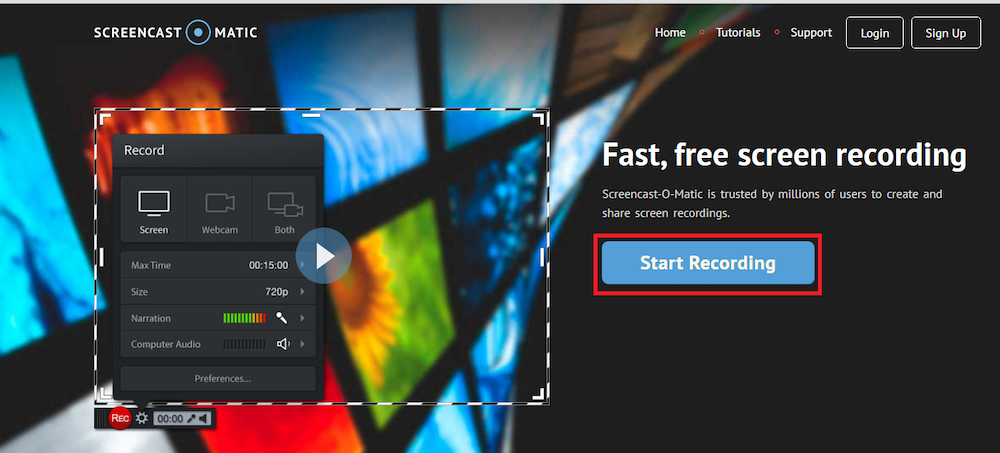
Many tasks are easier to explain with motion and voice rather than still images alone. That is where recording support becomes valuable. A screen recorder lets you show navigation, timing, cursor movement, and short explanations in real time.
This can be especially helpful for software walkthroughs, product demonstrations, onboarding, and remote troubleshooting. The combination of visuals and narration often reduces the need for repeated clarification.
If the app also supports editing after recording, the result can be much cleaner. Trimming the beginning, removing pauses, and adding labels can turn a rough recording into a more polished asset.
Fast export and sharing
A capture tool becomes much more useful when the output is easy to save and share. Export options such as PNG, JPG, PDF, and MP4 cover most common needs. Quick copy-to-clipboard functions are just as helpful for fast communication.
Sharing should feel natural. After all, the goal is usually not to keep the file inside the app. The goal is to send it somewhere useful, whether that is an email, a message thread, a knowledge base, or a team workspace.
A smooth export path saves time every single day.
How people use these tools in real work
Visual capture is not limited to one profession. It shows up in many kinds of work because almost every digital task becomes easier when it is shown clearly.
In support and service work
Support teams often answer the same questions again and again. A short recording or annotated screenshot can reduce repetition by showing the right steps once and saving that explanation for later.
This makes support faster and more consistent. It also gives customers a clearer experience, because they can see exactly what to do instead of interpreting a long text explanation.
In teaching and training
Teachers, trainers, and onboarding teams use screenshots and recordings to break complicated tasks into smaller, understandable pieces. A well-labeled image can help learners follow a process at their own pace.
This is especially helpful for new employees who are still learning tools, policies, or workflows. A clear visual guide often shortens the learning curve and reduces unnecessary questions.
In product and marketing work
Product teams use captures to show features, communicate design details, and document changes. Marketing teams use them to create walkthroughs, feature highlights, and tutorial-style content that feels more engaging than a plain text summary.