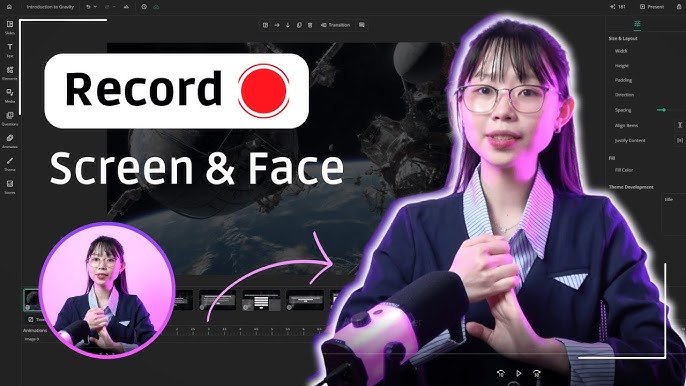
A clean tutorial video often starts with one practical choice: using a tool that lets you record screen and webcam simultaneously no watermark, so your message looks polished from the first frame. That matters for training clips, product demos, classroom lessons, team updates, and client walkthroughs, because viewers stay focused on your content instead of a logo stamped across the screen. A screencast is simply a digital recording of what appears on a computer screen, often paired with narration, which makes it a natural fit for teaching, explaining, and presenting.
The good news is that modern screen recording workflows are flexible. Many tools now support webcam overlays, picture-in-picture layouts, and voice capture, so you can show your face while demonstrating software or explaining a process. Browser-based and desktop-based options both exist, and each has strengths depending on your device, editing needs, and publishing goals.
Why this kind of recording works so well
When a viewer can see both your screen and your face, the video becomes more personal and easier to follow. The screen shows the steps, while the webcam helps build trust and keeps the presentation human. That combination is especially useful in business settings where clarity, credibility, and a calm speaking style matter.
For example, a software demo becomes much easier to understand when your cursor movement, clicks, and on-camera explanation happen together. A sales walkthrough feels more convincing when the presenter appears in the corner while the product is shown in real time. A lesson feels warmer when the teacher is visible rather than only hearing a voice over static slides.
There is also a practical benefit: people retain information better when instruction is both visual and conversational. That does not mean every video needs a facecam. Some recordings are better with only a clean screen capture. But when your goal is to guide, teach, or persuade, the combination is often the sweet spot.
The absence of a watermark also matters more than many creators expect. A watermark can make a video look like a trial version, even if the content is strong. If you are making a video for a business website, a team knowledge base, or a client presentation, a watermark can reduce the sense of polish. A clean export gives the whole recording a more finished and professional feel.
What to decide before you start recording
Good recordings usually come from good preparation. Before pressing the record button, it helps to answer five simple questions.
First, what is the purpose of the video? A tutorial needs a slower pace and careful narration. A product demo needs cleaner visuals and less hesitation. A quick update for a team can be more conversational. Knowing the purpose keeps the recording from becoming too long or too loose.
Second, who will watch it? A beginner audience needs more explanation and fewer assumptions. A technical audience can handle more speed and more detail. The viewer’s level determines how much context you should give at the start and how much hand-holding the video needs.
Third, where will the video live? A website embed, internal training library, social platform, and client file all benefit from slightly different framing. A public-facing video often needs stronger branding discipline, cleaner audio, and tighter editing. An internal training clip can be more relaxed, but it still should be clear and organized.
Fourth, do you need your webcam visible the whole time or only at the beginning and end? Some creators prefer the facecam throughout. Others keep it visible only during introductions and closings. Both styles can work. Continuous webcam presence feels more personal. Limited webcam presence can make the screen content more spacious.
Fifth, what is your final delivery format? If you plan to upload to a website or a learning platform, you may need a landscape layout. If the clip will also be repurposed for short-form channels, you may want to keep the layout flexible and leave safe space around the webcam window.
These decisions seem small, but they keep the recording process organized and reduce rework later.
Choosing the right recording setup
A strong setup does not have to be expensive. It only has to be reliable. The best setup is the one you can use consistently without fighting the software every time you record.
A browser-based recorder can be ideal when you want simplicity. It opens quickly, usually requires fewer installation steps, and is often easier for beginners. This is especially helpful when you need to make fast updates or record from a shared workstation. A desktop app can be better when you want more control, more scene options, or more advanced audio management.
Your hardware matters too. A stable computer with enough memory and a solid webcam can make the whole process smoother. If your videos involve editing large files, rendering graphics, or multitasking with other business tools, a stronger machine can help keep the workflow responsive. For teams that work with demanding digital projects, this kind of hardware planning is worth studying in a broader context, such as the discussion in Why Businesses Are Switching to nextcomputing for AI and Data-Intensive Workloads.
Audio deserves as much attention as the video. Viewers forgive a slightly imperfect webcam image more easily than they forgive echo, static, or muffled speech. A headset microphone, a USB mic, or a quiet room can dramatically improve the result. If your software allows separate audio levels for microphone and system sound, that is even better because it gives you more control during editing.
Lighting matters for the webcam. You do not need a studio, but you do need a clean light source in front of you. A face that is too dark, too bright, or washed out makes the presentation feel less intentional. Natural daylight near a window can work well, as long as it is not directly behind you.
Finally, think about privacy and security. Many screen recordings reveal tabs, chats, bookmarks, or documents that should not be visible. For small teams, stronger network security habits can support a safer workflow. A practical reference on that topic is Best Hardware Firewall Protection for Small Business: Top 8, which is useful background when you want to keep business systems better protected.
Making the screen and webcam layout look natural
The layout is part of the message. If the webcam window is too large, it distracts from the screen content. If it is too small, it loses its value. A balanced layout usually feels the best.
The classic picture-in-picture setup is popular for a reason. The screen stays primary, while the webcam sits in a corner and supports the narration. This arrangement works well for demos, walkthroughs, and teaching videos because the viewer always knows what matters most.
Some creators prefer a split layout. That can be effective when the screen content is simple and your face is equally important. It works better for talks, reflections, and talking-head style presentations than for detailed software demonstrations. If the screen contains dense menus or small text, avoid splitting the frame in a way that shrinks the interface too much.
Corner placement should also respect screen content. Do not cover menus, buttons, or key steps with your webcam frame. Many tools let you move the webcam bubble around, which is useful when the interface changes from one part of the recording to another. Keep the webcam window in a location that does not interfere with important actions.
A border around the webcam can help define the shape and separate it from the screen. But do not overdesign it. A simple clean frame often looks more professional than a flashy one. The goal is support, not decoration.
Backgrounds matter too. If your webcam feed shows a cluttered room, the viewer may focus on that instead of your message. A plain wall, bookshelf, or softly blurred background is usually enough. Clean presentation signals care, and care builds trust.
Preparing your screen before you hit record
A well-prepared screen saves editing time. Before recording, close tabs you do not need, hide notifications, and clear anything that might distract the viewer. If you are showing software, log in first and make sure the page or app opens in the exact state you want to demonstrate.
This is especially important if you are recording a training video. An unfinished setup, a pop-up alert, or a notification banner can interrupt the flow and force you to re-record sections. The time you spend preparing once can save you repeated takes later.
It is also smart to enlarge text and icons if your audience may watch on smaller screens. What looks readable on a large monitor can become hard to follow on a phone or laptop. Zooming the application slightly before recording can improve clarity without changing the message.
If you need to show cursor movement, slow down your mouse actions a little. Fast, jerky movement makes it harder to follow the steps. Gentle movement feels more deliberate and gives the audience time to absorb what is happening. When possible, pause briefly after each important click so the viewer can catch up.
Notifications deserve special attention. Messaging apps, email alerts, and calendar reminders can appear at the worst moment. Turning them off before recording keeps the session calm and helps protect confidential information.
Sound quality can make or break the video
People often focus on image quality first, but sound is usually what determines whether a viewer keeps watching. A clear voice feels more trustworthy and more comfortable than a perfect image with poor audio.
Start by recording in a quiet room. Remove background noise where possible. A fan, an open window, or a nearby conversation can distract viewers faster than you expect. If you live in a noisy place, choose a time of day with less activity and test your microphone first.
Next, speak at a steady pace. Many creators rush because they are watching the screen and explaining at the same time. That creates uneven pacing and makes the video harder to edit. A slow, calm delivery is easier to understand and easier to polish.
If your software offers separate controls for microphone and system audio, test them before the real recording. System sound should be present only when it adds value, such as playing a clip, demonstrating a feature, or showing a process that includes app audio. If you do not need it, keep it low or off.
A pop filter, headset, or condenser microphone can improve vocal clarity, but you do not need studio equipment to sound good. Even a modest setup can produce strong results if the room is quiet and the voice level is consistent.
Why the no-watermark part is worth caring about
A watermark can feel minor, but it influences the viewer’s first impression. It can suggest that the video was made in a trial version or that the creator did not fully finish the job. For business content, that can subtly weaken trust.
Removing that visual clutter helps the video feel like a finished asset rather than a temporary draft. It also makes the content easier to repurpose. A clean version can be embedded on a company site, attached to a client message, placed inside a course, or shared internally without looking incomplete.