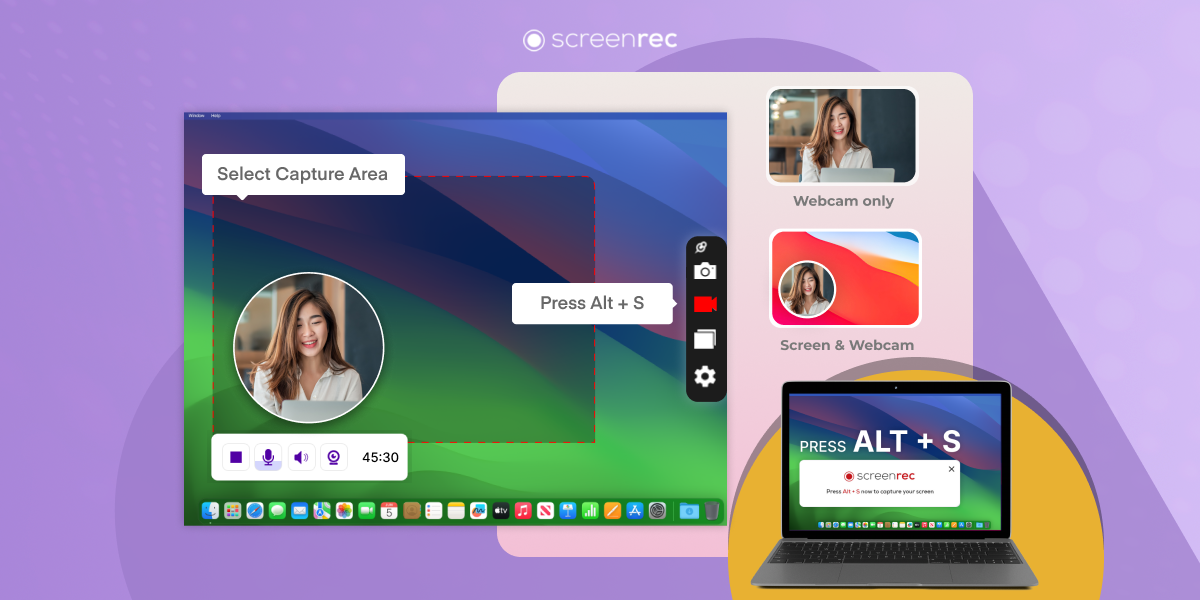
An unlimited free online video recorder with system sound is one of the most practical tools for anyone who needs to explain, demonstrate, teach, or document something on a computer without installing heavy software. A screencast is, by definition, a digital recording of computer screen output, often paired with narration and captions, which makes it especially useful for tutorials, walkthroughs, and product explanations.
That simple idea is why screen recording has become so valuable across business, education, support, and content creation. A good recording can turn a confusing process into something easy to follow, and it can save time by showing the exact steps instead of forcing people to guess from text alone. Screencasts are commonly used for software demonstrations, teaching, and guidance, and they can help people understand a task at their own pace.
The best part is that modern browser-based tools can remove much of the friction that used to come with recording. You do not always need a complicated editor, a long setup, or a paid subscription just to capture a clear lesson. In many cases, the goal is simply to record what is happening on the screen, include the sound that matters, and save a clean file that is easy to share.
Why this kind of recorder matters
For many people, the real value of screen recording is not the video itself. It is the communication. A short clip can explain a process faster than a long message thread. A recorded walkthrough can show where to click, what to expect, and what result should appear. That makes it useful for onboarding, internal training, customer support, product demos, and educational content.
A browser tool is especially appealing because it lowers the barrier to entry. You can usually open it, choose what to capture, test the sound, and begin recording without a complicated installation process. Business to Mark’s browser-based guide emphasizes that clean audio, a neat screen, and a simple workflow are often more important than having every advanced feature at once.
That balance matters even more when you are working on a low-spec computer, using a shared machine, or recording in a hurry. The right tool should help you get the job done with minimal distraction. In practice, that means a recorder that starts quickly, captures clearly, and lets you focus on the message instead of the software.
What to look for before you record
Before pressing the record button, decide what the video is supposed to achieve. A support clip has a different purpose from a tutorial or a product demo. One recording may only need one or two steps, while another may need a full workflow. Planning the purpose first helps you choose the right screen area, the right pace, and the right sound setup.
A useful recorder should make three things easy: capture the right part of the screen, include the sound you need, and save the result without unnecessary fuss. If the tool is confusing at the start, the recording process becomes harder than it needs to be. The cleanest workflow is usually the one you can repeat without thinking too much.
System audio matters because the recording may need more than your voice. Sometimes you want to explain what is happening while also capturing sounds from a website, a presentation, a software demo, or a video playing on the screen. In other cases, you may only want narration. A strong recorder should give you enough control to decide which sound sources belong in the final file.
Another thing to think about is how the final file will be used. A video for a website, training page, or team message should load smoothly and remain easy to watch. That means the recorder should produce a file that is practical, not oversized or awkward to share. Convenience, clarity, and reliability usually matter more than flashy extras.
Sound quality comes first
People often focus on picture quality first, but sound is usually what makes a recording feel professional or amateur. If the audio is weak, noisy, or out of sync, viewers lose patience quickly. Business to Mark’s screen-recording articles repeatedly stress that clean sound is essential because even a sharp image cannot fully rescue unclear narration.
A quiet room is a strong starting point. So is a microphone that picks up your voice clearly enough for speech. If the recorder offers a system audio option, test it before the real session begins. That small rehearsal can prevent the common mistake of finishing a full recording and then discovering that the wrong sound source was selected or the volume was too low.
Clear sound also helps with pacing. When people can hear the instructions well, they are less likely to rewind the video or feel lost halfway through. That is especially useful when the recording is meant to teach a task or reduce support questions.
Clean screen, clean message
A tidy screen makes the video easier to follow. Close unrelated tabs, hide distracting notifications, and remove anything private or irrelevant from view before you start. This advice may sound basic, but it is one of the easiest ways to improve the quality of a recording immediately. Business to Mark’s guides recommend clearing the desktop because a neat workspace helps the viewer stay focused on the task instead of the clutter.
The screen should support the message, not fight it. If your tutorial is about one website feature, keep that page open and close the rest. If it is about a software setting, make that window the center of attention. The less visual noise there is, the easier it is for the viewer to understand each step.
A simple workflow that keeps things smooth
A reliable workflow usually starts with a small rehearsal. Before the real recording, walk through the steps once to notice awkward transitions, slow-loading pages, or hidden menus. That rehearsal makes the final recording feel more natural and helps you avoid editing out too much later. It also lets you spot whether your narration is too fast or whether a step needs more explanation.
Once everything is ready, open the recorder, choose the screen area, test your sound, and begin with a calm start. Try not to rush. A good recording is often easy to watch because the presenter moves at a steady pace. The goal is not to finish as quickly as possible; it is to make the path clear enough that another person can repeat it.
This is where an unlimited free online video recorder with system sound becomes genuinely useful for everyday work. It allows you to combine visual steps with the audio that makes those steps understandable, which is especially helpful for tutorials, team updates, and short lessons. The convenience of an online tool also means you can record when the need arises instead of waiting for a more complex setup.
If the tool allows pauses or segmented recording, use them. A long single take is harder to manage than several shorter sections. You can record the introduction, the main steps, and the closing note separately. That often creates a calmer final video and gives you more room to fix mistakes without redoing the entire session.
How to capture system sound without making the recording messy
System sound should be treated as a deliberate choice, not an automatic checkbox. Ask whether the viewer needs to hear only your voice, only the on-screen sound, or both together. For many tutorials, the answer depends on the content. If you are explaining a website, software tool, or digital process, the system audio may be part of the lesson. If you are speaking over a quiet demonstration, narration may be enough.
Test the sound source before you commit to the full recording. If the recorder offers a preview or microphone check, use it. If your sound output is too low, raise it slightly. If the system sound is too loud, lower it so that your voice remains easy to understand. The best recordings usually have a balanced mix where no single audio source overwhelms the others.
A thoughtful sound setup also reduces editing work. When the levels are good from the beginning, you do not need to fight the recording later. That matters if you are producing several clips in a week or creating content for a larger audience. The more repeatable the setup, the easier the whole process becomes.
A browser tool is often enough
Many users assume they need a heavy desktop program to record well, but that is not always true. A browser-based workflow can be enough for tutorials, short presentations, and team messages. Business to Mark’s browser recorder guide highlights that a clean interface, easy sharing, and straightforward recording steps can be more valuable than a long list of advanced options.
That is especially true when the work is simple: a quick walkthrough, a support reply, a short class clip, or a product demo. The recorder only needs to help you capture the right moment, preserve the sound, and deliver a shareable result. Anything beyond that is a bonus.
Best situations for using screen recording
Screen recording fits naturally into business communication because it removes guesswork. A teammate can watch a process instead of reading a long explanation. A client can see exactly what happened instead of trying to imagine it. A learner can pause, rewind, and review at their own pace. Wikipedia’s screencast article notes that these recordings are commonly used for software demonstrations, teaching, and help in reporting or explaining tasks.
It also works well for product education. If you are showing how a service works, recording the screen lets you guide the viewer through the interface step by step. That is especially useful when the process involves menus, settings, dashboards, or small interface details that are hard to describe in text.
Training is another strong use case. When a process needs to be shown the same way every time, a recording can serve as a reusable guide. Business to Mark’s tutorial-focused article explains that recordings save time because they can be reused many times without repeating the explanation from scratch.
Support teams also benefit. Instead of sending several back-and-forth messages, a short recording can answer a question quickly and clearly. That kind of communication saves time for both sides and often feels more personal than a block of written instructions.
A strong article about recording should not stand alone from the practical resources that reinforce it. If your goal is to create useful tutorial content, Business to Mark’s screen-recording tutorial guide is a helpful companion because it focuses on planning, sound quality, editing, and reuse. It is especially relevant if your recording is meant to teach a process or support a lesson.
For a broader browser workflow, their no-installation online screen recorder guide is also useful because it discusses why a neat screen, strong audio, and a simple process create a better final result. That makes it a natural fit for anyone who wants a fast online approach rather than a more complex setup.
For Windows users, the internal-audio screen recording guide for Windows 11 is a practical reference because it explains how built-in tools and free tools differ in flexibility, especially when sound control matters.
For a wider definition of the format itself, Wikipedia’s screencast page is a useful external reference because it explains that screencasts are screen recordings often paired with narration and captions and commonly used for instruction and demonstration.
Editing lightly is usually better than over-editing
Once the recording is done, the temptation is to fix everything. That is not always the best move. Light editing is often enough. Trim the beginning and end, remove obvious pauses, and make sure the audio is balanced. If the viewer can follow the steps clearly, the video does not need extra decoration.
Too much editing can make the final result feel unnatural. For tutorials and walkthroughs, clarity matters more than style. A simple, well-paced video with good sound often performs better than a highly polished clip that feels too busy or overly produced. Business to Mark’s guides make the same general point by emphasizing that the recording should be useful first and impressive second.
Keeping a master copy is also smart. Save the original project or file before exporting final versions. That way, you can later make a shorter cut, a version for another audience, or an updated clip with fresh details. Reusable content becomes much easier to manage when the source file is organized properly.
Keep pacing human and calm
The pacing of your voice matters more than many creators realize. If you speak too quickly, viewers will feel rushed. If you pause too long, they may lose attention. Aim for a steady rhythm that gives the viewer enough time to see what changed on the screen before you move to the next step.
A human pace also makes the recording more trustworthy. It feels less like a machine and more like someone genuinely helping. That matters in business, education, and support because people respond better when the lesson feels clear, calm, and deliberate.
Common mistakes that reduce quality
One common mistake is recording too much. A longer video is not automatically a better video. If the goal is to explain one task, stay focused on that task and avoid unrelated commentary. A short, complete recording is usually more valuable than a long one that wanders.
Another mistake is forgetting to test audio. Even when the picture looks fine, poor sound can ruin the experience. Make a short test before the real take and listen back to it. A few seconds of checking can save you from having to repeat an entire session later.
A third mistake is leaving the screen cluttered. Notifications, random tabs, and personal documents can distract the viewer and weaken the professionalism of the clip. Clean up the workspace first so the video looks intentional from the start.
A fourth mistake is moving too fast through menus or settings. A viewer often needs just a little more time than the recorder expects. Slow down at important moments. Let the audience see what you are clicking before the screen changes again.
Why the right tool matters for repeat work
If you record only once in a while, almost any workable tool can be enough. But if you create videos regularly, the recorder becomes part of your workflow. Then speed, simplicity, and reliable audio control become much more important. The recorder should feel like a helper, not a hurdle.
That is why browser-based and free tools attract so much attention. They keep the process manageable and let you focus on the message rather than the machinery. The best tool is usually the one that fits your actual routine, not the one with the most features on paper.
How this helps business communication
In a business setting, screen recordings can reduce friction. Instead of sending several instructions in text, you can show the exact process once and reuse that clip later. That is helpful for onboarding, software training, product walkthroughs, and internal support. Screencasts are a practical way to replace unclear explanations with visible steps.
They also support brand consistency. A clean, calm, well-structured walkthrough makes a company feel organized and prepared. A small improvement in presentation can create a better impression, especially when the recording is shared with clients or new team members.
Business content also benefits from repeatability. Once a recording style works, it can be used again and again. That makes it useful for training libraries, help centers, and quick reference materials. A single good video can do the work of many repetitive explanations.
For teams that already publish guides and explainers, a screen recorder is a natural companion to written content. The video adds visual clarity, while the text provides searchable detail. Together, they create a stronger learning experience than either format alone.
A simple checklist for better recordings
Start with a clear purpose. Know exactly what the video should teach or show. Then open only the window or app you actually need. Test the microphone and system audio before you begin. Make sure the screen is clean and the pace feels calm.
During the recording, speak in short, understandable sentences. Pause long enough for each action to register. If a step is complicated, slow down rather than rush through it. Afterward, trim only what is necessary and keep the final file easy to share.
The more often you follow the same routine, the easier recording becomes. A repeatable workflow reduces mistakes and makes every new clip faster to create.
Final thoughts
A good online recorder should make life easier, not busier. That is the real strength of a browser-based tool with audio support: it helps you create useful videos quickly, without forcing you into a complicated setup. Whether you are making lessons, training clips, product demos, or support walkthroughs, the goal is the same: clear communication.
The best recordings usually come from simple habits. Plan the task, clean the screen, check the audio, keep the pace steady, and edit lightly. Those small steps matter more than fancy effects. They help the final video feel natural, understandable, and ready to share.
Used well, screen recording becomes more than a technical feature. It becomes a communication habit that saves time, reduces confusion, and helps other people learn faster. And when the tool is free, easy to use, and able to capture the sound you need, the entire process becomes even more practical.